
SendSafely’s Restrict File Save and Print feature enforces view-only access to PDF and image files. When enabled, recipients can only view file contents within the SendSafely web portal (or one of our service desk integrations) and are unable to save, download, print or copy file contents to their local computer. This setting can be applied to outbound files from the SendSafely Send Items page, as well as inbound files uploaded to a Dropzone.
The ability to restrict file saving and printing is included in the SendSafely Advanced Privacy Bundle. Combined with our watermarking feature and the ability to enforce recipient access limits, securing your data has never been more comprehensive.
Sending Items
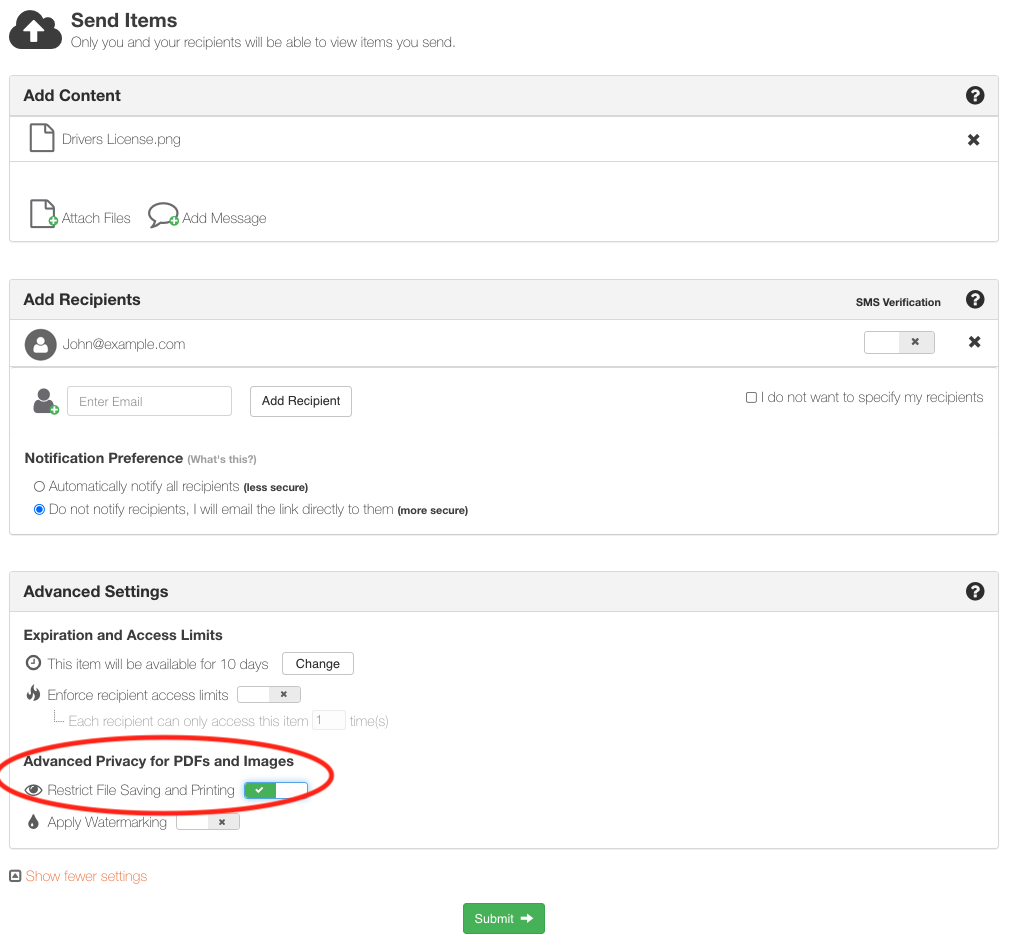
Restrict File Save and Print can be set on a per-package basis from the Send Items page (Advanced Settings section). Toggle the slider to the on position, and any PDF and image files (.png, .gif, .jpg, .jpeg, .bmp) added to the package will be restricted from download. Note that you can still add non-PDF or image files to the package, however these file types will not be restricted.
Inbound Items (Dropzones)
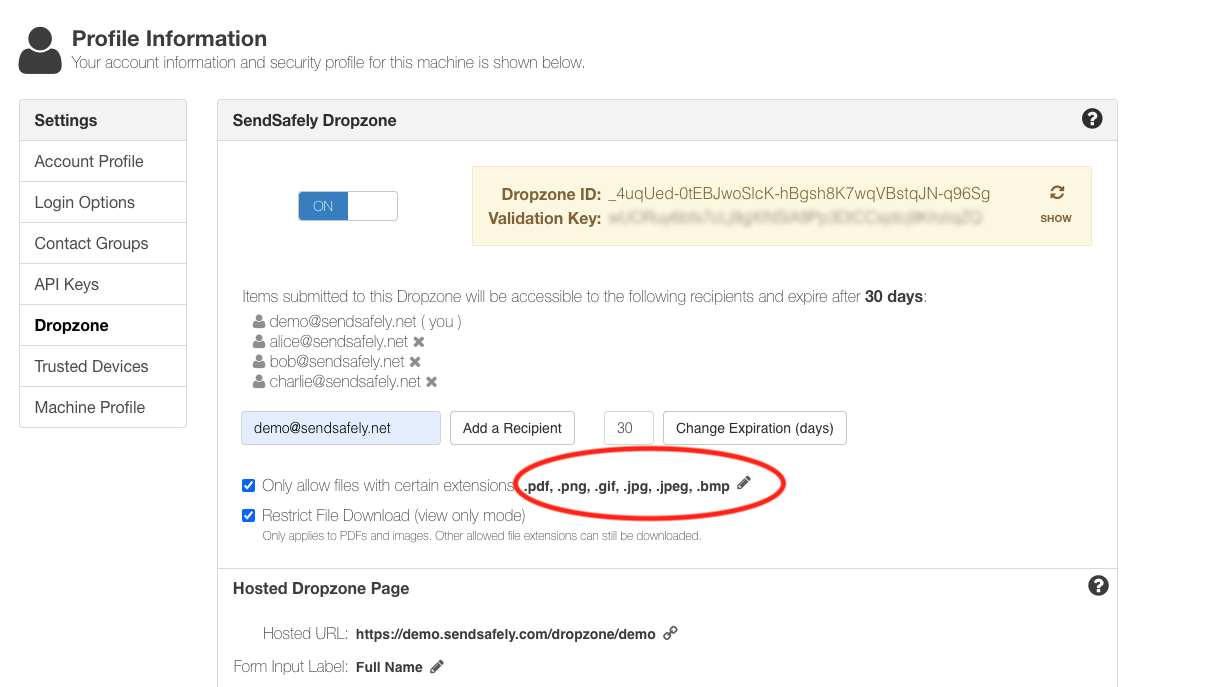
Any Dropzone Owner or System Administrator can turn this feature on for an individual Dropzone. When enabled, all PDF and image files uploaded to that Dropzone are automatically restricted from download.
- Navigate to the Dropzone profile from the web portal menu bar
- Check the box next to the Restrict File Download (view only mode) option
- When prompted, choose Yes to limit the allowed file extensions to PDF and image files only. (You may choose to Leave as is, however any non-PDF or image files will be downloadable.)
Restricted Dropzone files can be viewed by agents in a preview window on the SendSafely web portal or within popular SendSafely integrations like our Salesforce and Zendesk apps.
The Restrict File Save and Print feature is included as part of the SendSafely Advanced Privacy Bundle. Contact sales@sendsafely.com for more information on how to enable this option for your SendSafely subscription.
SendSafely: Encrypted File Transfer for Modern Business
If your organization needs a secure way to transfer files with customers or business partners, our platform might be right for you. Contact us today.
Request a Demo


