Skip to content
New AI Custom Form BuilderDescribe the intake form. It ships branded and end-to-end encrypted.AI Custom Form Builder is here See it build
Integrations

View-Only Dropzone Setting to Restrict File Downloads

SendSafely now offers a view-only setting for safeguarding customer PII and other sensitive data submitted to a Dropzone.

Brian Holyfield · 2 min read
View-Only Dropzone Setting to Restrict File Downloads

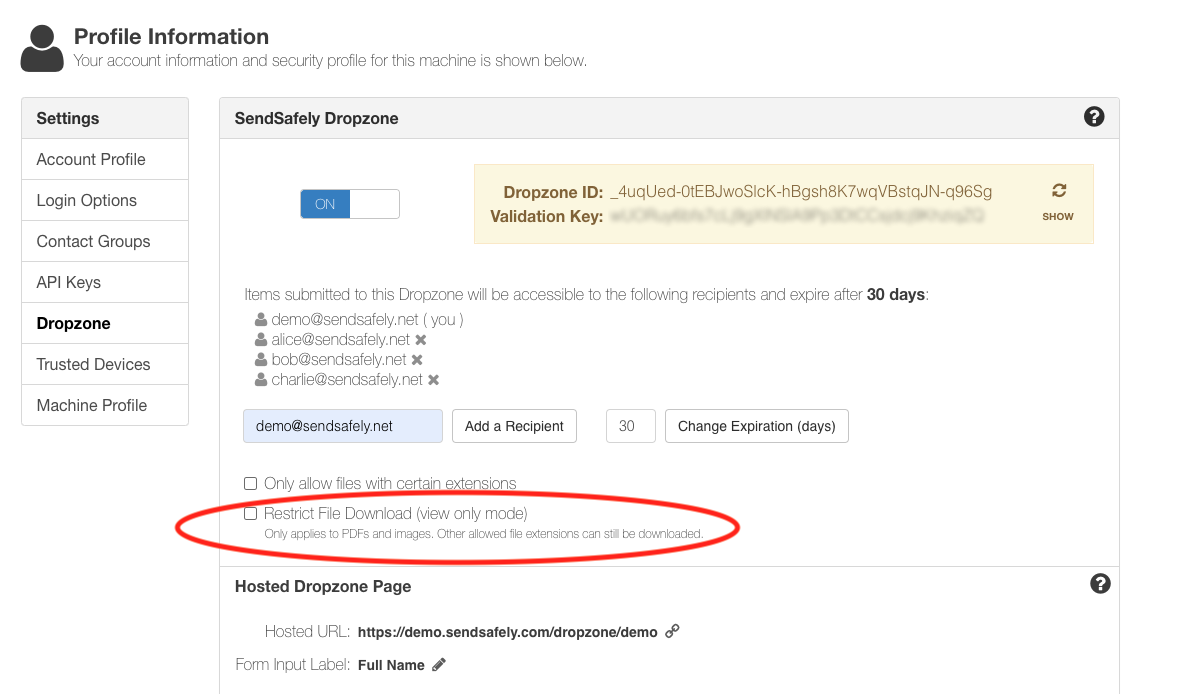
SendSafely now offers a view-only setting for safeguarding customer PII and other sensitive data submitted to a Dropzone. The new “Restrict File Download” feature blocks the download, save and print option when Dropzone users view PDF and image files. The files can still be viewed in a preview window on the SendSafely portal and within popular SendSafely integrations like our Salesforce, Zendesk and Freshdesk apps.

The Dropzone Owner or System Administrator can turn on this feature by taking the following steps:

DZ Restict File Download Option

Once enabled, you will be prompted to limit allowed file types to PDF and Image files (pdf, .png, .gif, .jpg, .jpeg, .bmp). Choose Yes to update, or Leave as is to retain your previous settings.
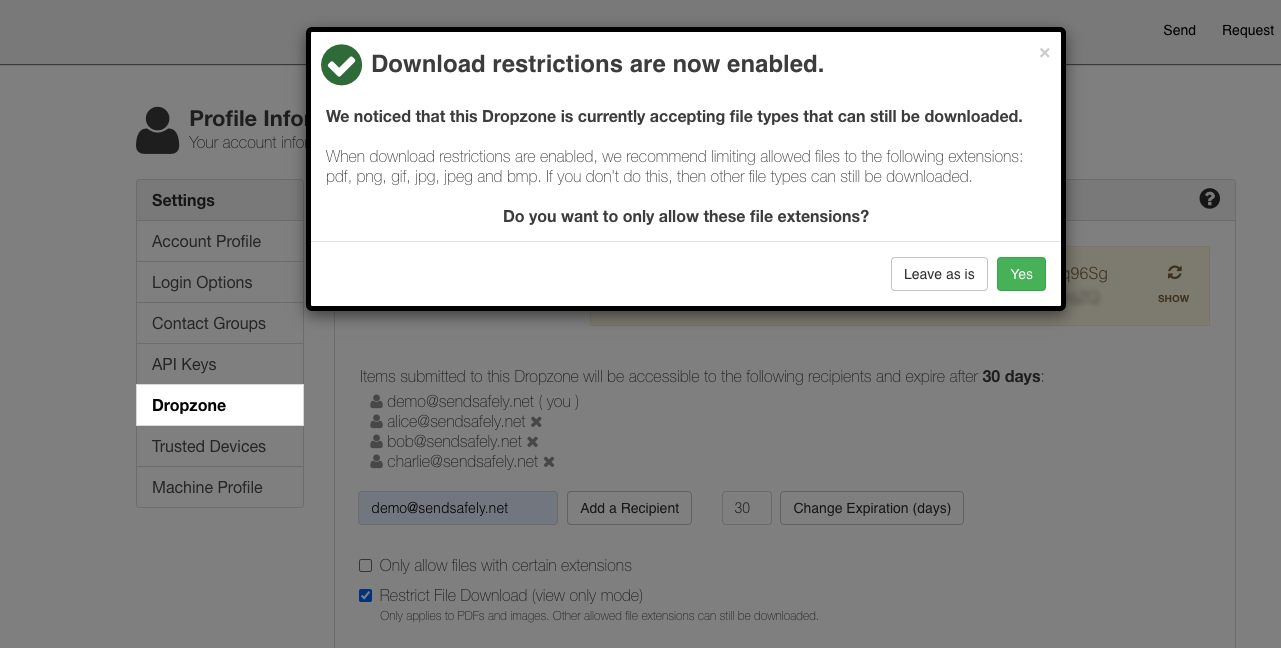
Update file types

Please note that if you continue to allow additional file types to be submitted (e.g. .txt, .xlsx, etc.) these will not be restricted from agent download. You can edit the allowed file extensions from any time from the Dropzone configuration screen as shown below.
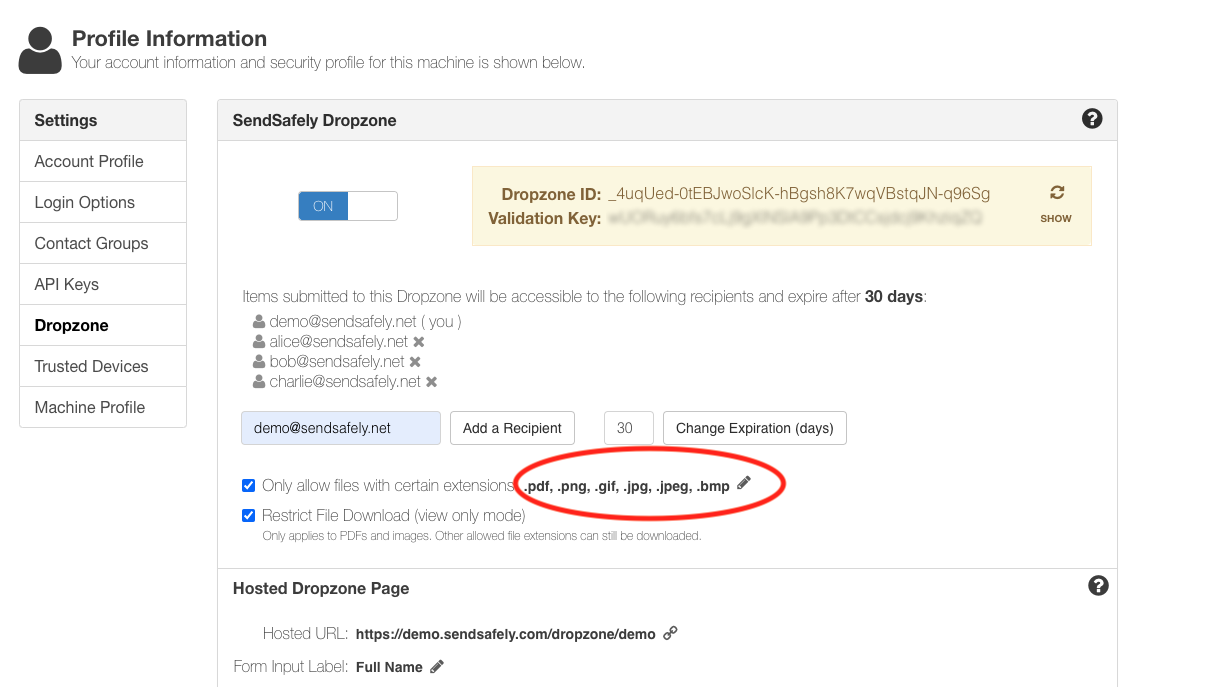
DZ view only file types

Once enabled, any image or PDF submitted to the Dropzone will be view only, regardless of method of access. Agents will only be able to access the file in a preview window with no download, save or print functionality.
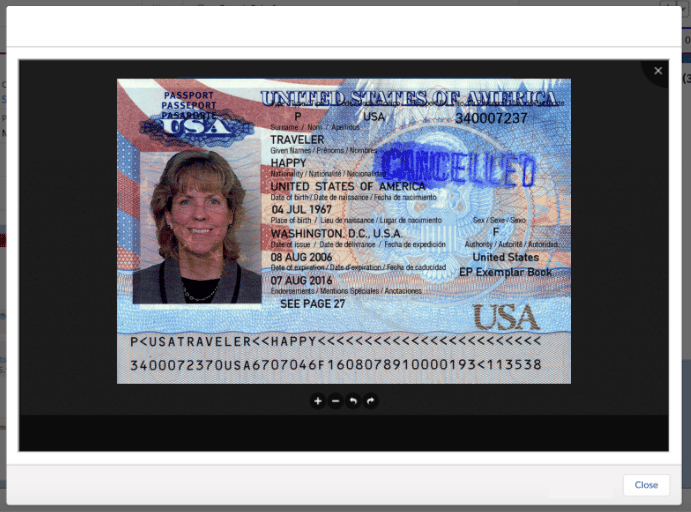
salesforce_preview RESTRICTED


SendSafely: Encrypted File Transfer for Modern Business

If your organization needs a secure way to transfer files with customers or business partners, our platform might be right for you. Contact us today.

Request a Demo

Frequently asked questions

Can I make Dropzone uploads view-only in SendSafely?

Yes, on Enterprise plans. The Restrict File Download (view only mode) setting blocks download, save and print for PDF and image files submitted to a Dropzone. Files can still be viewed in a preview window on the SendSafely portal and in the Salesforce, Zendesk and Freshdesk apps.

How do I turn on view-only mode for a SendSafely Dropzone?

The Dropzone Owner or a System Administrator goes to Account Menu > Edit Profile > Dropzone and checks Restrict File Download (view only mode). You are then prompted to limit allowed file types to PDF and image files.

Which file types does SendSafely's view-only Dropzone setting restrict?

It applies to PDF and image files (.pdf, .png, .gif, .jpg, .jpeg, .bmp). If you allow other types such as .txt or .xlsx, those are not restricted from download.

Does view-only mode apply in the Zendesk, Salesforce and Freshdesk apps?

Yes. Once enabled, any image or PDF submitted to the Dropzone is view only regardless of how it is accessed. Agents see it in a preview window with no download, save or print.

Why restrict downloads of files submitted through a Dropzone?

Preventing agents from saving or printing customer PII keeps sensitive files from spreading to unmanaged endpoints. The Dropzone page describes the embedded viewer and other access controls.

Written by Brian Holyfield