
We recently released two note-worthy updates to our SendSafely for Zendesk Agent Sidebar app.** The app now supports rendering of encrypted messages (text) that is submitted by the user and more granular control of outbound files. Both new features are accessible to all SendSafely enterprise customers and are summarized in this blog post.
Support for Encrypted Messages
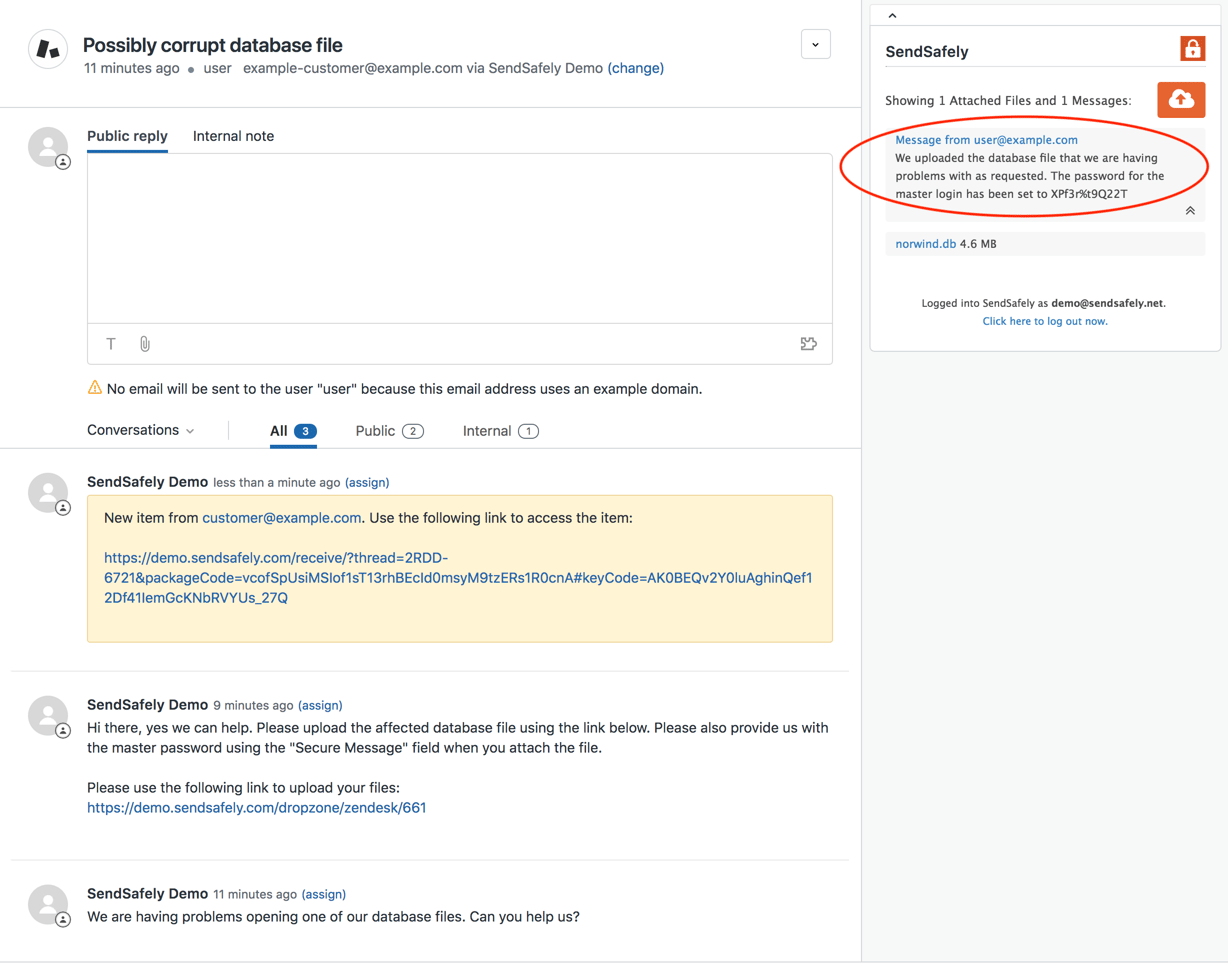
A few months ago we announced that the SendSafely Hosted Dropzone allows users to include a secure message with, or instead of, a file upload (more information about that feature can be found here). We’ve now updated the Zendesk app so that customers who have connected a Dropzone to Zendesk can view the secure message content inline with uploaded files directly within sidebar. When a secure message is present, the sidebar app will show a “Message fromuser@example.com “ list item along with the list of files. Clicking on that item will display the entire decrypted message as shown in the screenshot below.
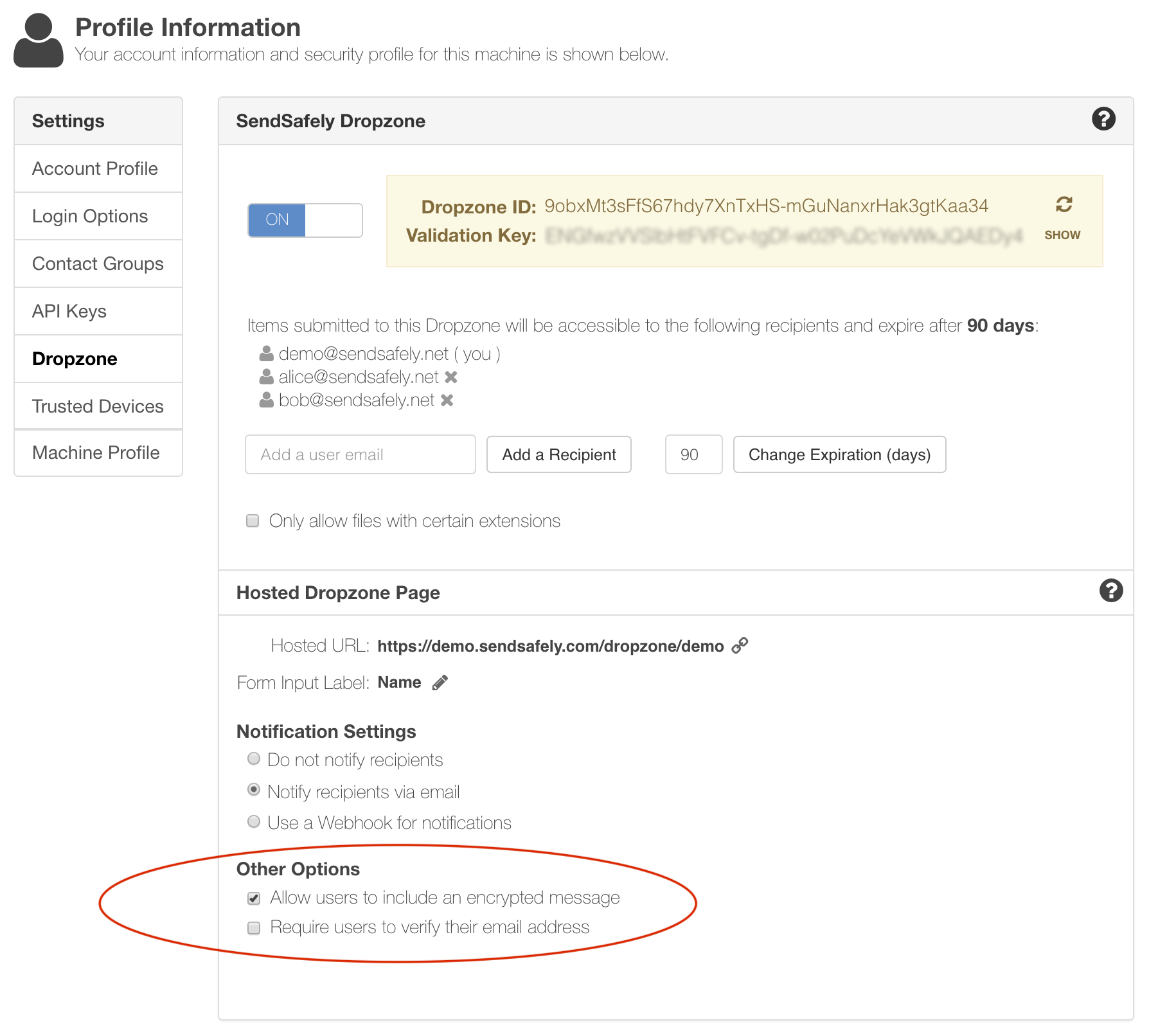
 In order to allow users to include a secure message, you must enable this feature on your Hosted Dropzone. Note that this feature is only available when using the Hosted Dropzone and not when using the SendSafely Zendesk Portal Widget.
More Granular Access Restrictions
We’ve also released a new app configuration setting that allows for more granular access restrictions on outgoing items sent using the Sidebar app. You can now choose to include only agents that are explicitly assigned to the ticket as recipients for outbound files, as opposed to the default behavior of adding all agents as recipients.
Zendesk Administrators can opt into this new feature by removing the “Add all agents as recipients for outbound files” option under the Manage apps -> SendSafely -> App Configuration tab within Zendesk. By default, all agents are added since that was the original behavior before this update was released.
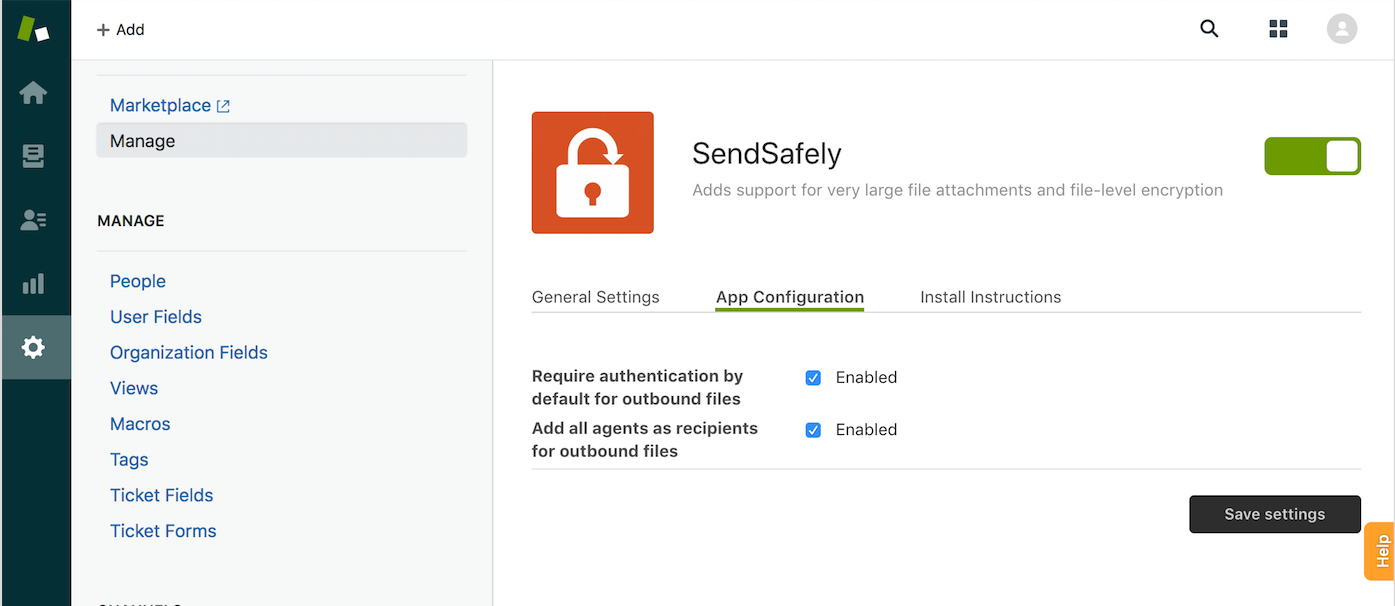
When this option is enabled (default) the Sidebar app will automatically add the following individuals as recipients on every outbound package:
- Ticket Requestor
- Users listed in the “Ticket CCs” field
- All members of the Zendesk Agent role
- All members of the Zendesk Admin role
This configuration is useful if all of your agents require access to outbound files to provide support for your customer base. If this option is disabled (un-checked), then only the following individuals will be added as recipients on outbound packages:
- Ticket Requestor
- Users listed in the “Ticket CCs” field
-
- Agents (or agent groups) listed in the “Assignee” field
This configuration allows only the assigned agents and CC’s (including requestors) to access the item. This is useful if you have a large number of agents (or sub-teams of agents) where it may not be appropriate for all agents to have access to every outbound files.
SendSafely: Integrated File Transfer for the Apps you Love
If you are a Zendesk customer looking for a secure way to transfer files with customers, or simply need to send large attachments using Zendesk, our platform might be right for you.
Request a Demo


