
Two new features have been added to our Zendesk agent sidebar app to streamline user workflows and help close tickets faster. Agents can now update customer file names to meaningful descriptors, as well as conveniently drag and drop files for encryption and attachment to outbound communications.
Rename Dropzone Files
Often, customer files uploaded to a Zendesk ticket have the default name supplied by the user’s device, such as IMG_5677.jpg (an iphone photo) or Screen_Shot_2023-01-01_at_8.56.45_AM.png (screen capture from a mac). These generic names can make it hard for agents to zero in on the specific file they need without having to open and view the contents of each. This problem is compounded when multiple files have been uploaded, and when a ticket requires repeated viewings by a team of agents.
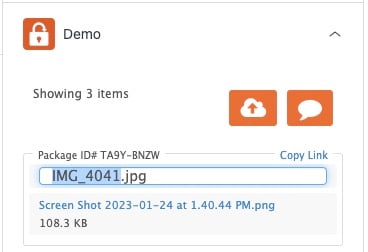
With our new Dropzone file renaming capability, any agent who can view a file uploaded to a Dropzone can rename that file directly in the Zendesk agent app. For example, on a ticket with three image files, IMG_5677 can be renamed to “Drivers License Front”, IMG_5678 renamed to “Drivers License Back” and IMG_5679 to “Proof of Residence”, fast tracking all future views of the ticket and ticket attachments.
To edit a file name, agents simply hover over the file to expose a pencil icon. From there they can edit the file name (excluding the file extension, which cannot be changed).
Drag & Drop Attachments
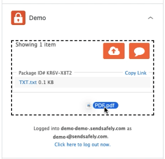
Agents using Chrome and Edge browsers can now drag & drop files directory into the SendSafely agent sidebar app to simplify the process of securing outbound attachments to customers. Up to 99 files can be dragged in at once.
SendSafely: Encrypted File Transfer for Modern Business
If your organization needs a secure way to transfer files with customers or business partners, our platform might be right for you. Contact us today.
Request a Demo


