
We are pleased to announce our latest Digital Customer Service integration: SendSafely for Intercom. Our newest integration seamlessly adds SendSafely’s secure file collection capabilities to Intercom conversations.
- Uploaded files are automatically protected with end-to-end encryption for ultimate security and privacy
- SendSafely supports files up to 100GB
- Files can be set to automatically expire according to predefined policy and can be configured with additional security features like download restrictions and watermarking.
Read on to learn how SendSafely protects sensitive customer data exchanged in real time via Intercom, without slowing down either the agent or the customer.
SendSafely offers two Intercom integration options, which can be used together to provide a seamless multi-channel secure upload experience:
-
The SendSafely App for Intercom
The SendSafely App adds native secure file upload capability to the Intercom Messenger. Customers can share sensitive data directly from the messenger interface, never having to leave the conversation. The SendSafely App for Intercom is built using the SendSafely Dropzone widget and can be installed from the Apps and Integrations page in your SendSafely Portal.
-
Hosted Dropzone + Dropzone Connector for Intercom
For conversations happening outside of Messenger, for example over email, agents can link customers to the SendSafely Hosted Dropzone, a secure file upload page hosted on the SendSafely web portal. After upload, the Dropzone Connector for Intercom posts a notification including a link to the files to the appropriate Intercom ticket. This integration option works with both tickets and conversations. More information on how to install and configure the Dropzone Connector can be found in our Help Center.
This blog post provides an overview of how each of these options provide sensitive file exchange with customers.
SendSafely App
With the SendSafely App for Intercom, agents can request sensitive data, and customers can securely upload that data directly from the Messenger interface. Once installed and configured, the SendSafely app is added to the “Shortcuts” menu in the reply editor for agents:
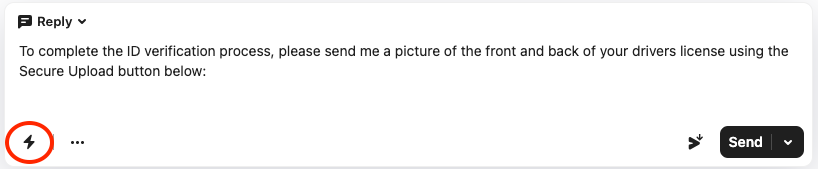
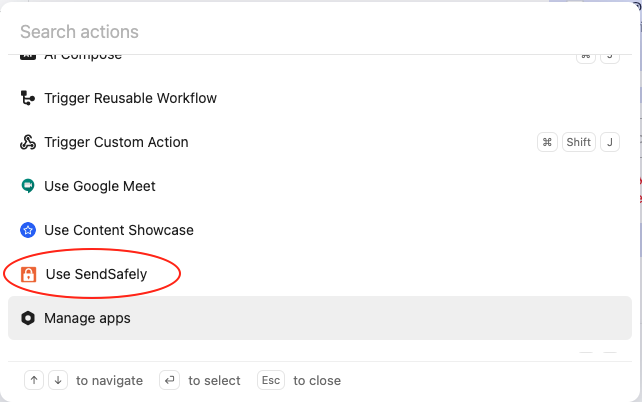
Agents request a secure file upload from customers by selecting the “Use SendSafely” option from the menu.
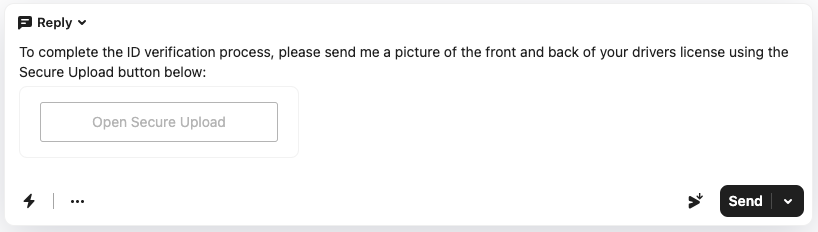
A button to launch the SendSafely Dropzone “Open Secure Upload” is inserted into the conversation.
On the other side of the conversation, the customer clicks the button to open the SendSafely Dropzone. The Dropzone opens natively within the Messenger interface, so the end-user never has to leave the conversation.
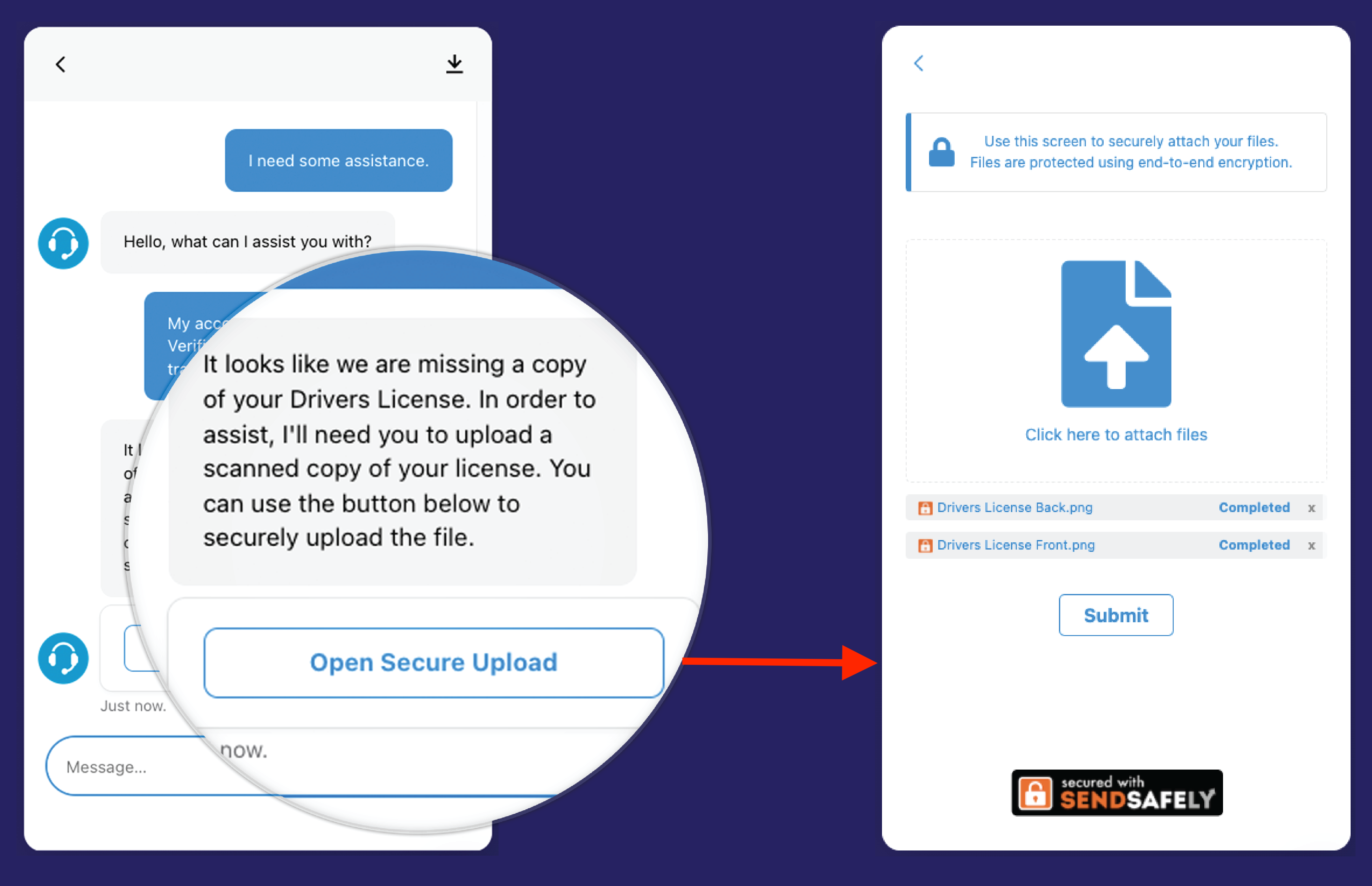
After the customer completes their secure file upload and clicks submit, they are returned to the conversation view and the button transitions to an “Upload Complete” state. Agents can view and/or download files by clicking on the Upload Complete button.
Hosted Dropzone + Dropzone Connector for Intercom
For conversations happening outside of the Messenger (over email, for example) agents can send customers a direct link to the SendSafely Hosted Dropzone. After files are uploaded, the Dropzone Connector posts a notification back to the Intercom ticket that includes a direct link to the files. The Hosted Dropzone works with both tickets and conversations.
Once configured, agents use an Intercom Macro combined with a Custom Action to automatically insert a ticket-specific upload link into the conversation.
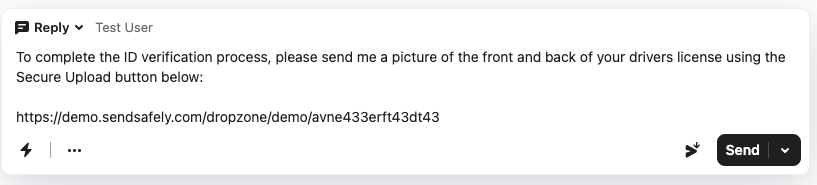
After clicking the link, customers are routed to the Dropzone, hosted on your branded SendSafely web portal, where they can securely upload files.
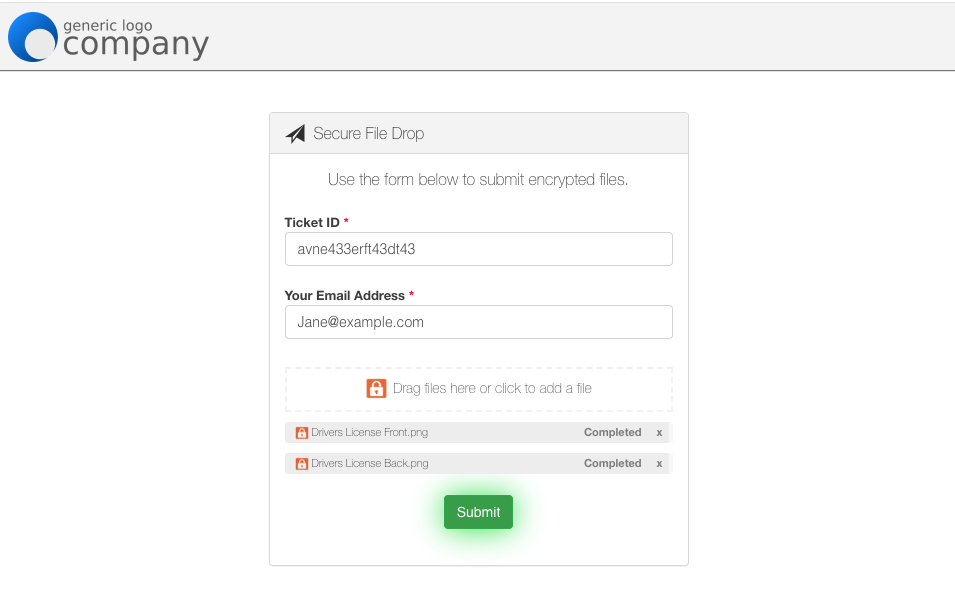
Once the files are submitted, a link to access the files is posted back to the ticket or conversation. Authorized agents can click the link to access the uploaded files in the SendSafely web portal.
For more information on SendSafely for Intercom, contact success@sendsafely.com.
SendSafely: Integrated File Transfer for the Apps you Love
If you are looking for a secure way to send or receive files with anyone, or simply need a better way to transfer large files, our platform might be right for you.
Request a Demo


