
SendSafely is excited to announce our newest platform integration - SendSafely for Salesforce Service Cloud. Organizations that use Service Cloud can now securely exchange inbound and outbound files with the added security and peace of mind of SendSafely’s end-to-end encryption.
SendSafely offers three integration components for Service Cloud. All components are included with our SendSafely Enterprise Edition.
**Community Site with Dropzone Widget **- **Used by non-agents (your customers) to attach files when creating or updating a case from a Salesforce Community site.
SendSafely Canvas App **- Used by Service Cloud Agents for viewing and downloading uploaded files and for sending files to end users,** all** directly from the Salesforce Console
Hosted Dropzone with Salesforce Connector - Used by non-agents (your customers) to attach files to Salesforce cases outside of Salesforce. Ideal for customer-based workflows that do not use a Salesforce Community site, like email based communication.
In this blog post, we’ll give you a quick overview of how you can use each of these components to securely exchange files with your customers, vendors and business partners.
Community Site SendSafely Dropzone Widget
The SendSafely Dropzone Widget allows your customers to securely submit files from your Salesforce Community site when creating a new case or updating an existing case. Files are uploaded directly to SendSafely, which means end-to-end encryption and no file size limits. Once the widget is installed the SendSafely Dropzone can appear as part of any form within your Community site.
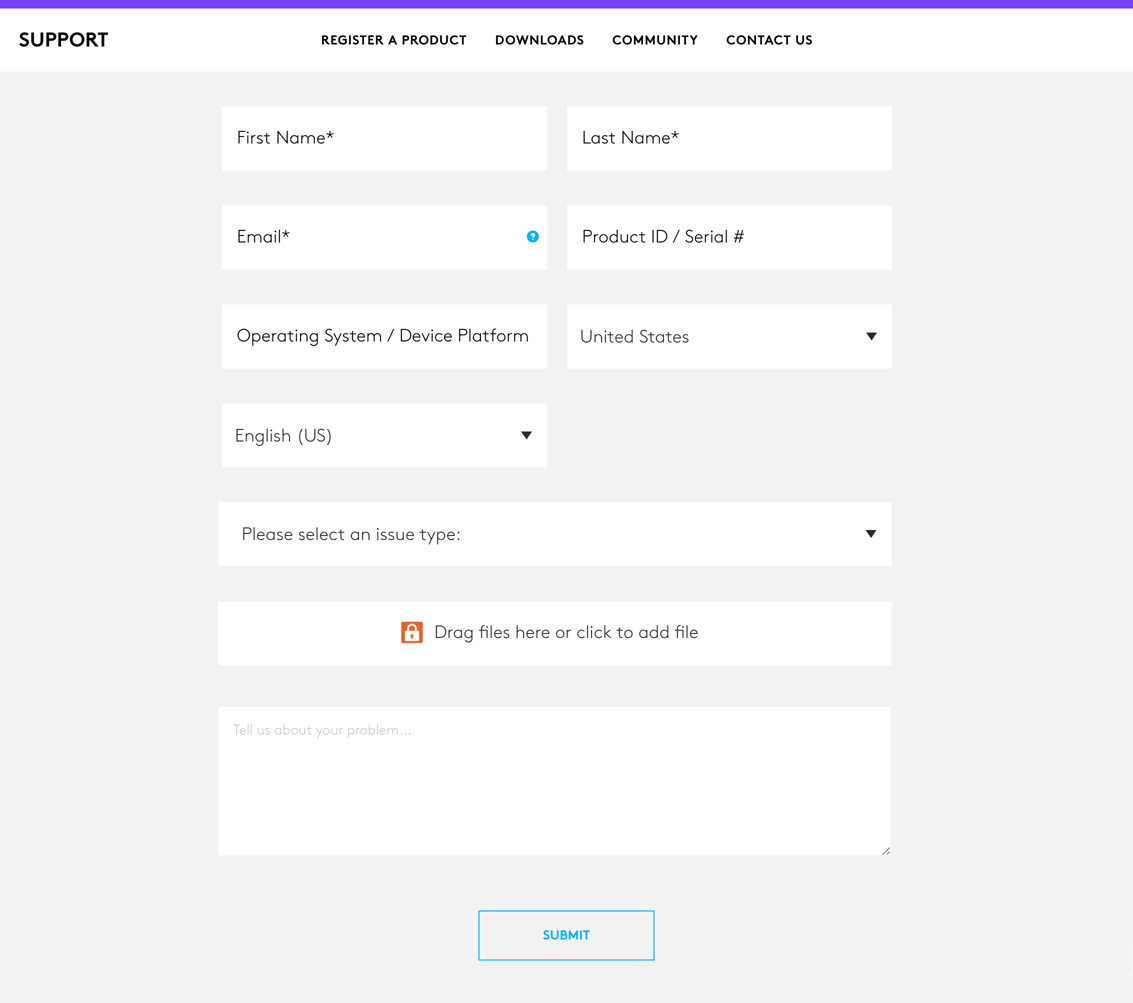
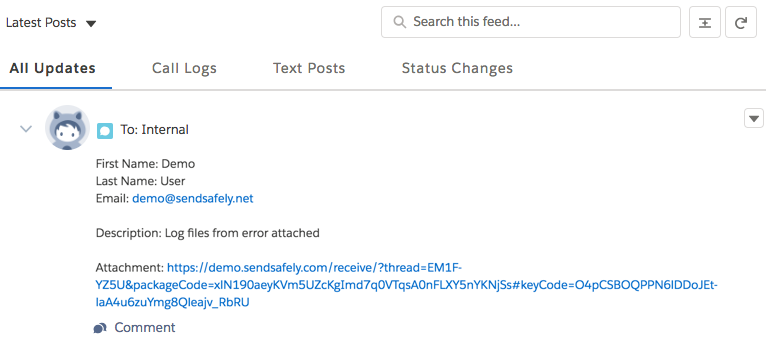
Once the form is submitted, a secure link to access the file in SendSafely is automatically inserted into the case comments, and is visible to both agents and the customer who uploaded the file. Agents are seamlessly authenticated to SendSafely in order to access the attached files.
SendSafely Canvas App
Our Canvas App streamlines the process of viewing files that are attached to a Service Cloud case using SendSafely. The Canvas App can be installed into any page layout within your Service Cloud console. As agents view cases, any associated SendSafely files are displayed in the Canvas App and are easily accessible to to the agent.
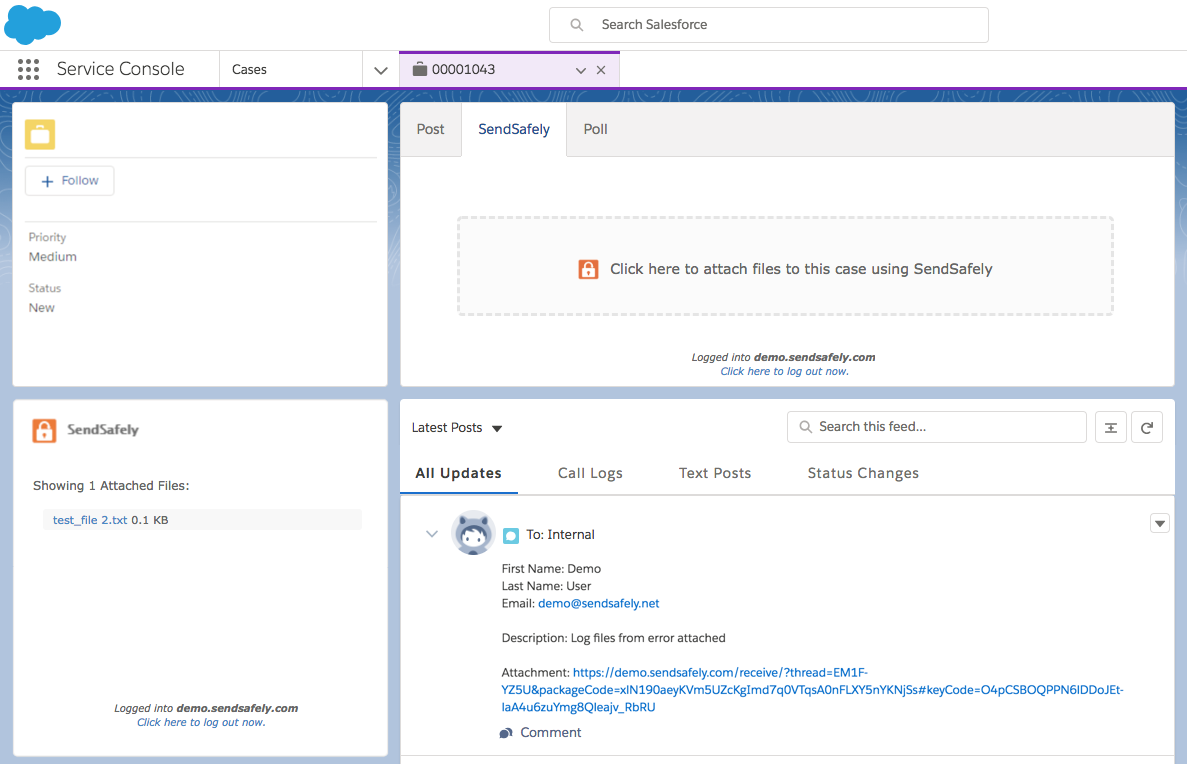
A SendSafely Quick Action also enables agents to send encrypted files to customers. Instead of using the built in Salesforce “Attach file” button, the agent can attach an encrypted file using the SendSafely Quick Action at the top of the page. A link for the customer to access the files is automatically inserted into the agent’s reply.
The SendSafely Salesforce Canvas App is available for free download in the Salesforce AppExchange for existing and prospective SendSafely enterprise customers. For detailed set up instructions, please refer to our Help Center article.
Hosted Dropzone with SalesforceConnector**
The Hosted Dropzone is useful for instances where your customers do not use a Salesforce Community site to reply to cases, such as email-based workflows. The Dropzone is a secure file drop hosted by SendSafely and can be branded with your company’s logo and color scheme.
In order to upload files, agents can send customers a link to the Dropzone. The cutomer’s case number can also be embedded in the link so it is pre-populated for the customer (typically done using a macro).
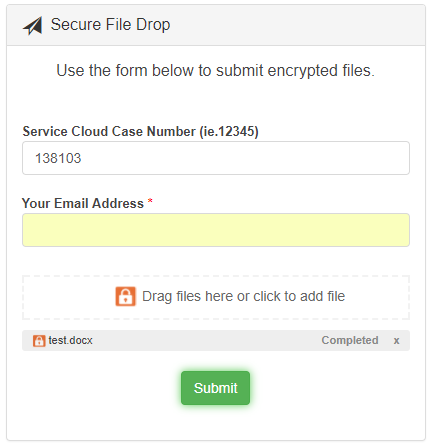
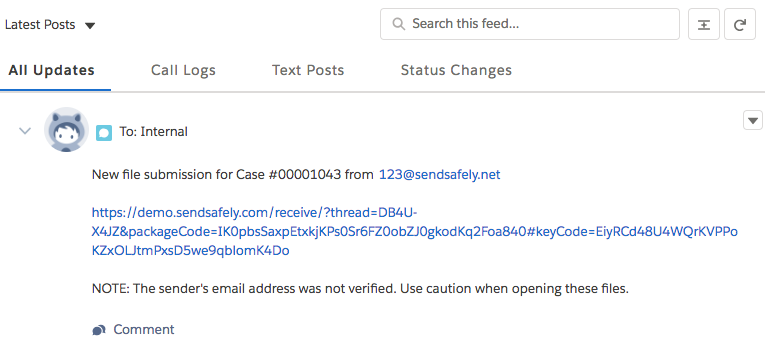
When files are submitted, the Dropzone Connector posts a message to the case that includes the email address of the submitter along with a secure link to access the files. Dropzone Connectors are currently available for Google Apps and Zapier. For detailed Connector set up instructions, please refer to our Help Center article.
For questions on SendSafely Salesforce Service Cloud integration, please contact our Customer Success Team.
SendSafely: Integrated File Transfer for the Apps you Love
If you are a Salesforce customer looking for a secure way to transfer files with customers, or simply need to send large attachments using Salesforce, our platform might be right for you.
Request a Demo


