Skip to content
New AI Custom Form BuilderDescribe the intake form. It ships branded and end-to-end encrypted.AI Custom Form Builder is here See it build
Integrations

Formatted Links for Zendesk Portal Uploads

We are pleased to announce a new link formatting option for the SendSafely Zendesk Portal Widget, our secure file upload widget for the Zendesk Help Center.

Brian Holyfield · 1 min read
Formatted Links for Zendesk Portal Uploads

We are pleased to announce a new link formatting option for the SendSafely Zendesk Portal Widget, our secure file upload widget for the Zendesk Help Center.

Customers using the Zendesk Rich Text Editor on their Help Center can now configure the SendSafely Widget to post a formatted hyperlink to the ticket comment instead of the un-formatted URL. The formatted hyperlink provides a more streamlined look and makes it easier to match specific comments to files in the SendSafely sidebar App, which is useful when a ticket contains multiple SendSafely packages.
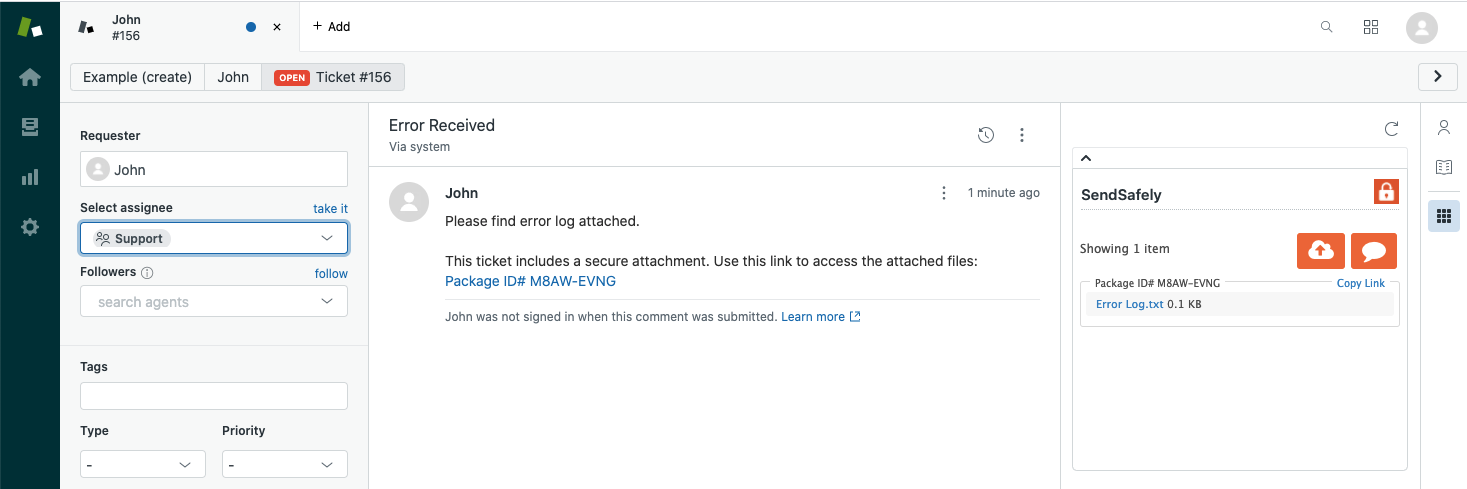
Formatted Link

To opt into this feature you can specify “sendsafely.formattedLink=true” within the Javascript used to initialize the SendSafely Widget. For step by step instructions please see our help center article.
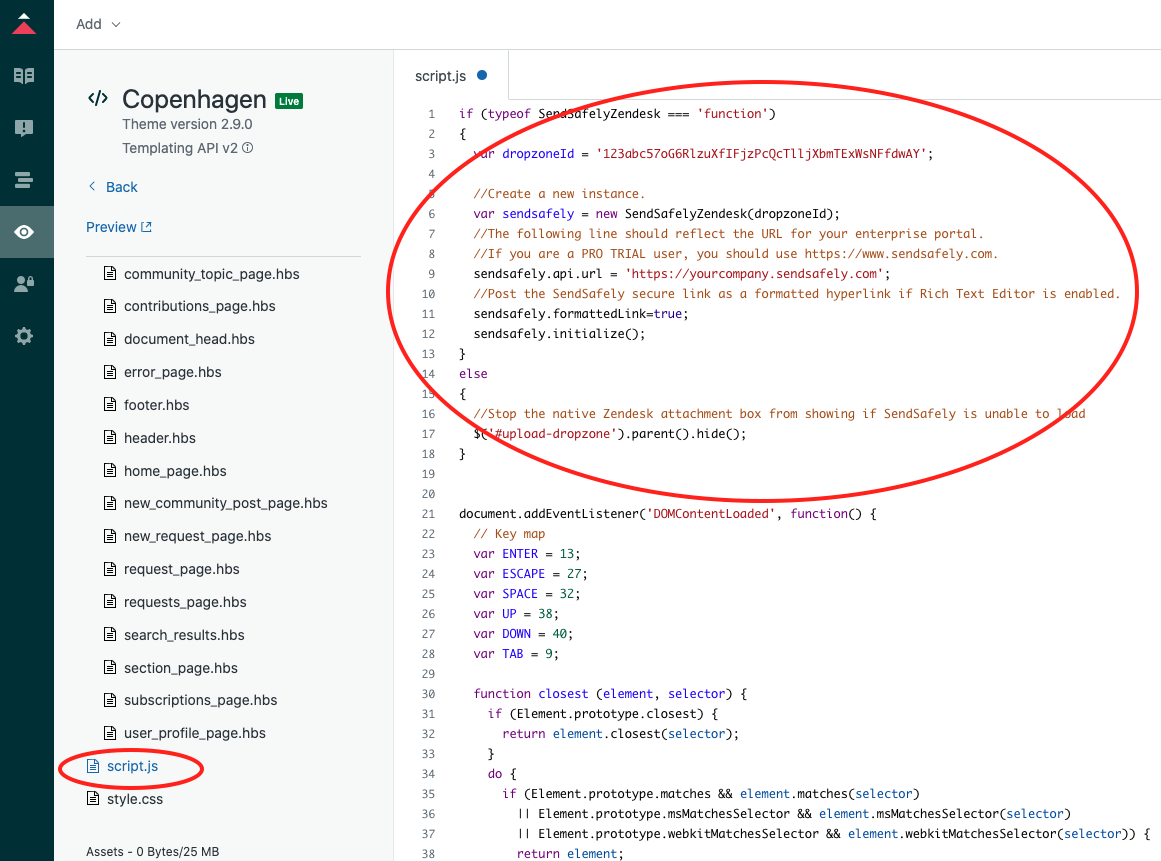
Script.JS

Formatted links for customer uploads are only supported if your Help Center has the Zendesk Rich Text Editor enabled on the Submit a request form (as shown below).
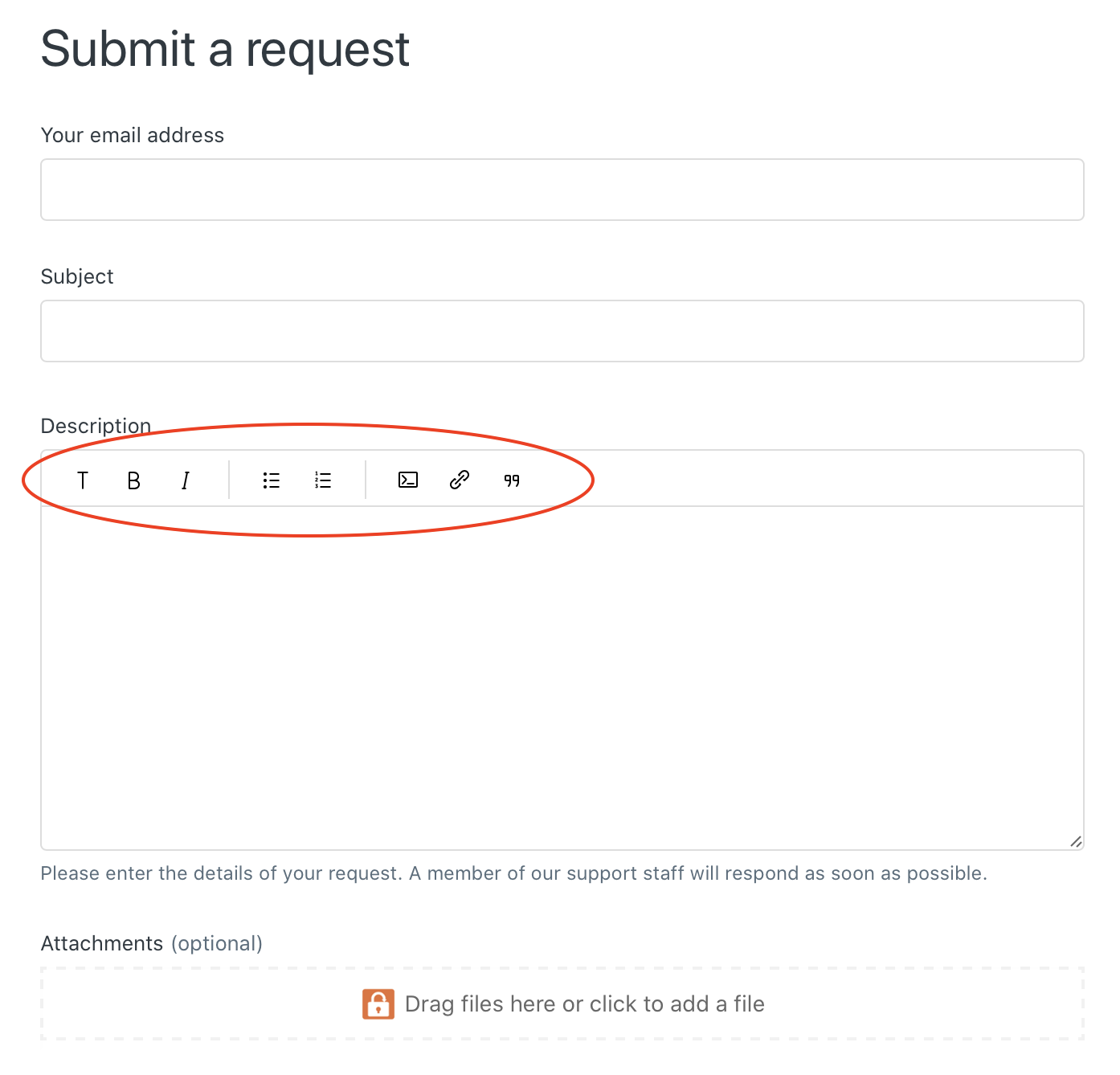
Rich Text Editor-1

Zendesk portals that are not currently using the Rich Text editor can follow the steps outlined here to turn this feature on.


SendSafely: Encrypted File Transfer for Modern Business

If your organization needs a secure way to transfer files with customers or business partners, our platform might be right for you. Contact us today.

Request a Demo

Frequently asked questions

What does the formatted link option do in the SendSafely Zendesk Portal Widget?

It posts a formatted hyperlink to the Zendesk ticket comment instead of a raw, unformatted SendSafely URL. When this option was introduced in 2021, it gave tickets a cleaner look and made it easier to match specific comments to files in the SendSafely sidebar App when a ticket contains multiple SendSafely packages.

How do I enable formatted links for Zendesk Help Center uploads with SendSafely?

Add “sendsafely.formattedLink=true” to the JavaScript used to initialize the SendSafely Widget on your Help Center. A SendSafely Help Center article provides step-by-step instructions for installing and configuring the Portal Widget.

Do formatted SendSafely links require the Zendesk Rich Text Editor?

Yes. When the option was introduced in 2021, formatted links for customer uploads were only supported when your Help Center had the Zendesk Rich Text Editor enabled on the Submit a request form. Portals not using the Rich Text Editor needed to turn it on first.

Why use formatted links when a Zendesk ticket has several SendSafely uploads?

Formatted links make it easier to tell which ticket comment corresponds to which set of files shown in the SendSafely sidebar App. That matters most when one ticket contains multiple SendSafely packages and agents need to find the right upload quickly.

Written by Brian Holyfield