Skip to content
New AI Custom Form BuilderDescribe the intake form. It ships branded and end-to-end encrypted.AI Custom Form Builder is here See it build
Product

SMS Verification for SendSafely Workspaces

Workspace Owners and Managers can require collaborators to authenticate using an SMS pin in addition to email verification for extra protection against un-authorized access.

Brian Holyfield · 2 min read
SMS Verification for SendSafely Workspaces

Workspace Owners and Managers can require collaborators to authenticate using an SMS pin in addition to email verification for extra protection against un-authorized access. SMS verification can be enabled for individual collaborators and works for external guests and registered SendSafely users.

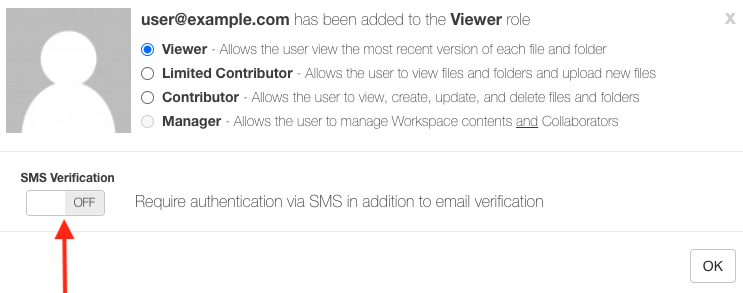
Within each workspace, the Collaborators tab shows you which individuals have SMS verification configured, and the Activity Log captures when SMS is enabled or disabled for each person. For new collaborators, you will see the option to enable SMS verification after adding the collaborator as shown below.
workspaces-sms-1

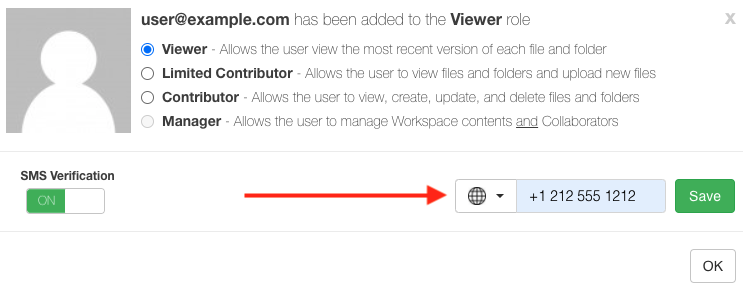
Turn on the SMS Verification slider** option to enable. Enter the collaborator’s cell phone number and click **Save. If you have previously shared items with the person using SMS verification, the phone number and SMS setting will be pre-populated.
workspaces-sms-2

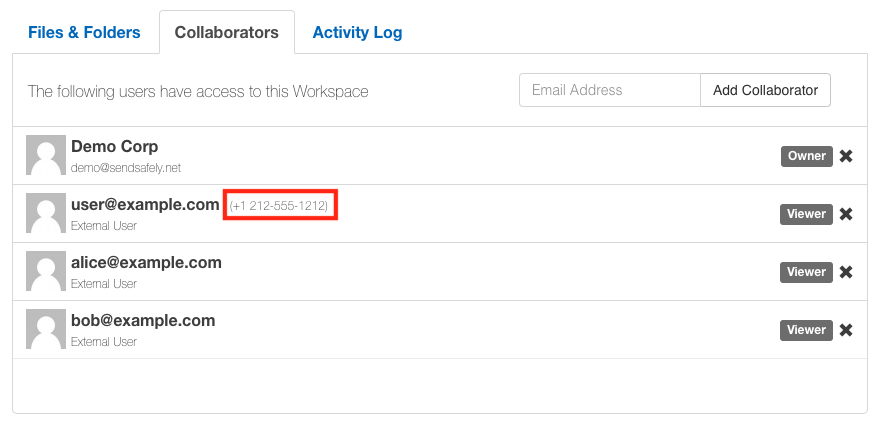
The Collaborators tab indicates which users have SMS configured by displaying the phone number after their name.
workspace-sms-3

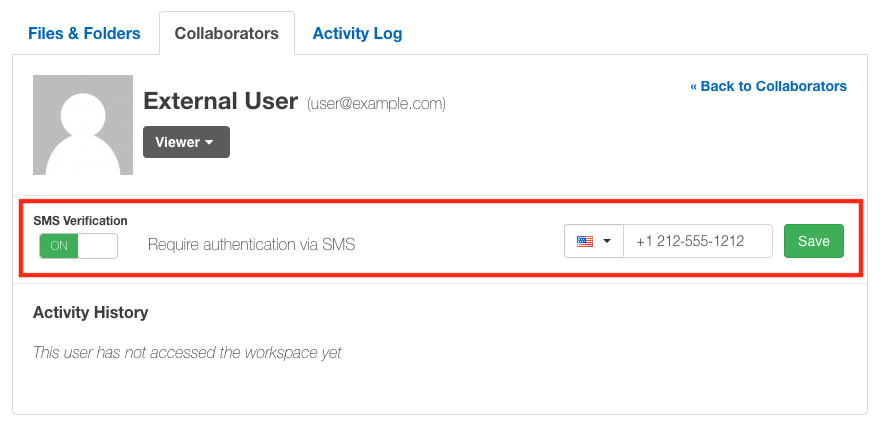
To add SMS verification to an existing collaborator or edit a phone number, click into that users row to open their profile. From the collaborators individual profile you can turn SMS verification on or off and edit the phone number.
workspace-sms-4

SendSafely Workspaces are available for customers using our SendSafely Enterprise version. If you are a Basic/Pro user and would like to test out our enterprise version, contact us today for a free trial.


SendSafely: Encrypted File Transfer for Modern Business

If your organization needs a secure way to transfer files with customers or business partners, our platform might be right for you. Contact us today.

Request a Demo

Frequently asked questions

Can I require SMS verification for SendSafely Workspace collaborators?

Yes. Workspace administrators can require individual collaborators to authenticate with an SMS PIN in addition to email verification. It works for both external guests and registered SendSafely users.

How do I enable SMS verification for a new Workspace collaborator?

After adding the collaborator, turn on the SMS Verification slider, enter their cell phone number and click Save. If you have previously shared items with that person using SMS verification, the phone number and setting are pre-populated.

How do I add SMS verification to an existing Workspace collaborator?

Click the collaborator’s row in the Collaborators tab to open their profile. From there you can turn SMS verification on or off and edit the phone number.

How can I tell which Workspace collaborators use SMS verification?

The Collaborators tab shows the phone number after the name of each person with SMS configured. The Activity Log records when SMS verification is enabled or disabled for each collaborator.

Written by Brian Holyfield