
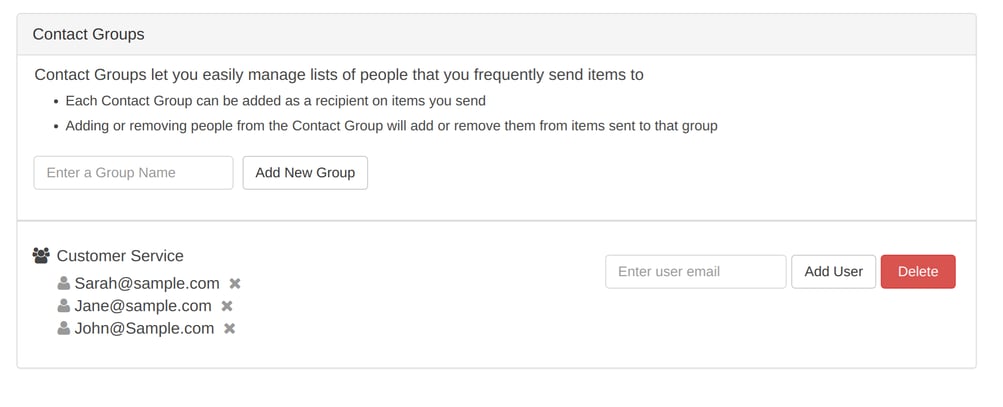
Are you constantly adding the same group of collaborators, such as your sales team or tech support team to every Workspace you create? Good news! We have just streamlined managing group access to Workspaces. Workspace Owners can now leverage SendSafely’s Enterprise Contact groups to easily add and manage teams on Workspaces. Enterprise Contact groups are lists of emails created and managed by SendSafely Admins from the Enterprise Console. The groups can contain both internal registered users and external guests and once created, are available to all Workspace Owners and Managers to add to Workspaces.
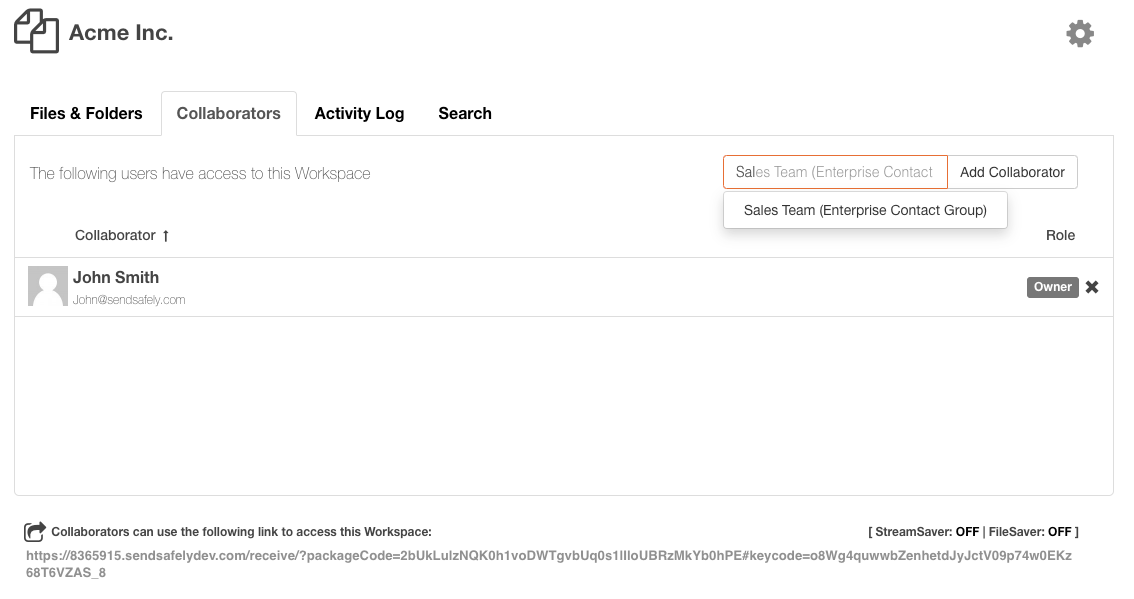
Workspace Owners and Managers add an Enterprise Contact group to a Workspace by typing the Group name in the Add Collaborator input box.
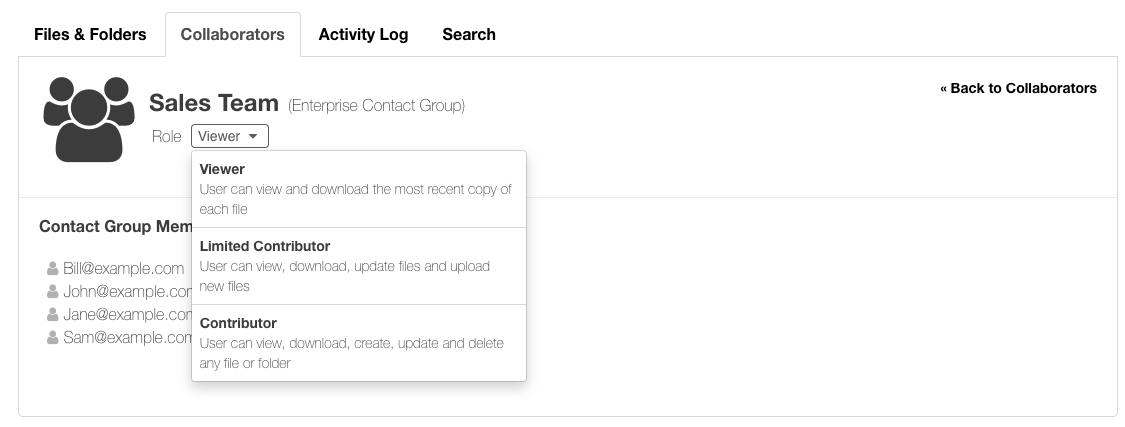
Once the contact group is added, the group role can be updated to viewer, limited contributor or contributor. Every member of the contact group receives the same role.
Contact groups are sorted to the top of the Workspace Collaborator listing. As each group member accesses the Workspace, an individual collaborator record is created. If a contact group member is not displayed in the Collaborator list, this means they have not yet accessed the Workspace.
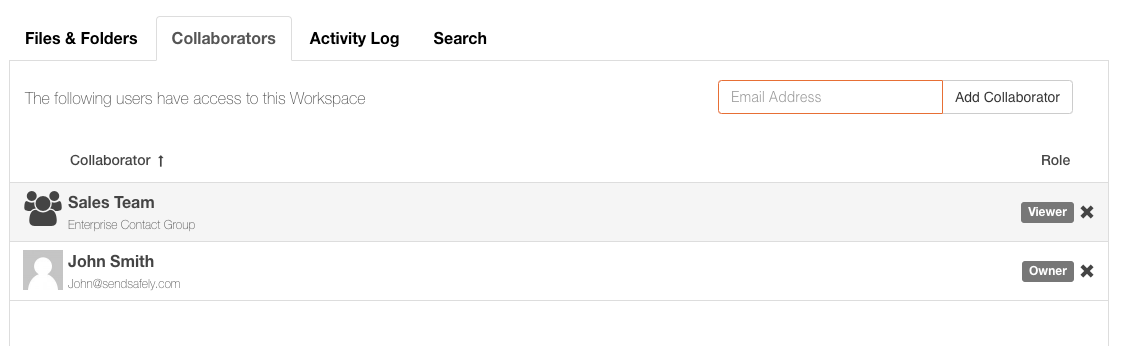
Contact groups can be removed by clicking the X next to the role. This will remove the contact group as well as any group members who have accessed the Workspace and have individual collaborator records.
Contact group membership is managed by SendSafely Admins from the Enterprise Console. Workspace Owners and Managers are unable to edit group membership from the Workspace itself. As members of the contact group are added or removed from the Enterprise Console, their access to the Workspace is added/removed concurrently.
If a collaborator has been added to a Workspace multiple times (for example, the collaborator is a member of two or more contact groups) the highest permission will be granted. Therefore if the collaborator is a member of one group with Viewer role and a second group with Contributor role, the Contributor role will be granted.
Contact Groups for Workspaces are available on the SendSafely Business and Enterprise plan. For more information, contact success@sendsafely.com.
SendSafely: Integrated File Transfer for the Apps you Love
If you are looking for a secure way to send or receive files with anyone, or simply need a better way to transfer large files, our platform might be right for you.
Request a Demo


