
The latest version of the SendSafely for Salesforce Service Cloud app is now available in the Salesforce AppExchange. This new version has a number of feature enhancements for improving usability and workflow, including:
- Consolidation of Send and Receive Screens
- Enhanced File Listing
- Inline Preview for PDF and Images
Consolidation of Send and Receive Screen
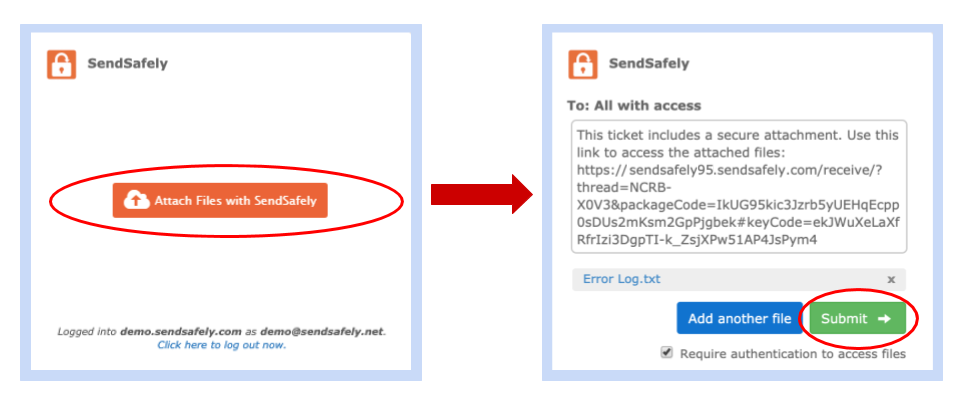
Agents now have the ability to upload files from the same panel currently used for viewing and downloading files. This new update makes the existing “Quick Action” component optional since it is no longer required for sending files.
To upload files from the SendSafely App you can now use the following steps:
-
Navigate to the SendSafely App in the sidebar
-
Click the Orange “Attach Files with SendSafely” button and select file(s)
-
Add another file if necessary and once done click Submit.
The link to the secure package is posted to the chatter feed as normal
Enhanced File Listing
When Agents view files that are attached to a case, the file names are now grouped by Package ID. (This is the same Submission ID shown to the end user when they complete an upload via the Hosted Dropzone.) Agents can also use the “Copy Link” option to copy the secure link for that package to the clipboard. From there, the link can be pasted into an email reply, slack channel or other communication feed for recipient access.
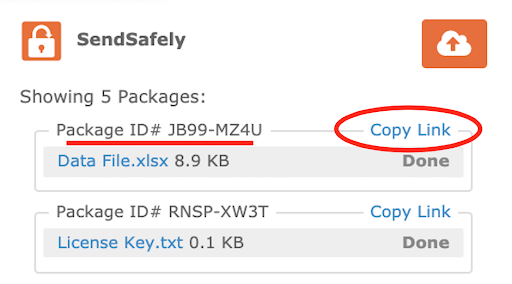
Also note that once files are attached to a case, the “Attach Files with SendSafely” button moves to the top right corner of the screen for additional attachments as needed. Agents can also still upload files using the Quick Action panel if present within the case page layout.
Inline Preview for PDF and Images
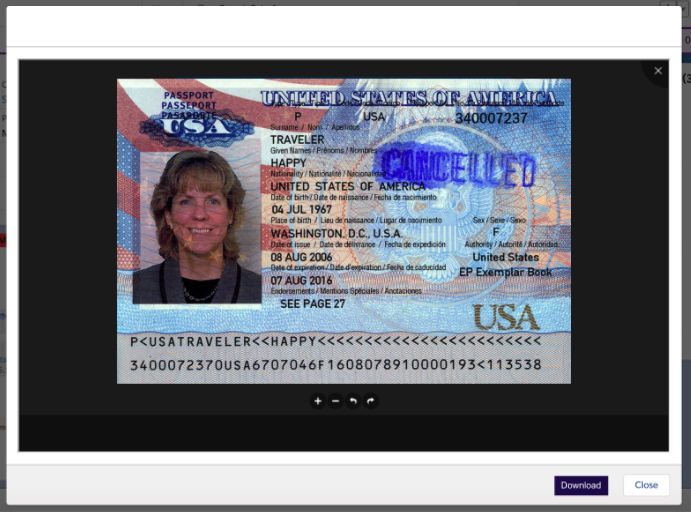
Agents can now preview PDFs and image files in the Service Cloud console without having to save and open the file. File preview is available for PDF files and popular image formats (pdf, .png, .gif, .jpg, .jpeg, and .bmp).
For more information or feedback on these new features, please contact our team.
SendSafely: Integrated File Transfer for the Apps you Love
If you are looking for a secure way to send or receive files with anyone, or simply need a better way to transfer large files, our platform might be right for you.
Request a Demo


