Skip to content
New AI Custom Form BuilderDescribe the intake form. It ships branded and end-to-end encrypted.AI Custom Form Builder is here See it build
Integrations

Upload from Google Drive

Customers utilizing Google Drive for online file storage can now upload files directly to SendSafely using our new Google Drive integration.

Brian Holyfield · 2 min read
Upload from Google Drive

Customers utilizing Google Drive for online file storage can now upload files directly to SendSafely using our new Google Drive integration. Files can be attached to both Workspaces and Transfers (Send Items) without having to download the files locally first. Files are uploaded and encrypted client side in the browser, maintaining end-to-end encryption at all times.

Attach from Google Drive is available as a new drop down option alongside the Attach Files button on both Send Items and Workspaces. Clicking the Attach Files button will continue to open the local file picker as always.

#####

Attaching files from the Send Items page:
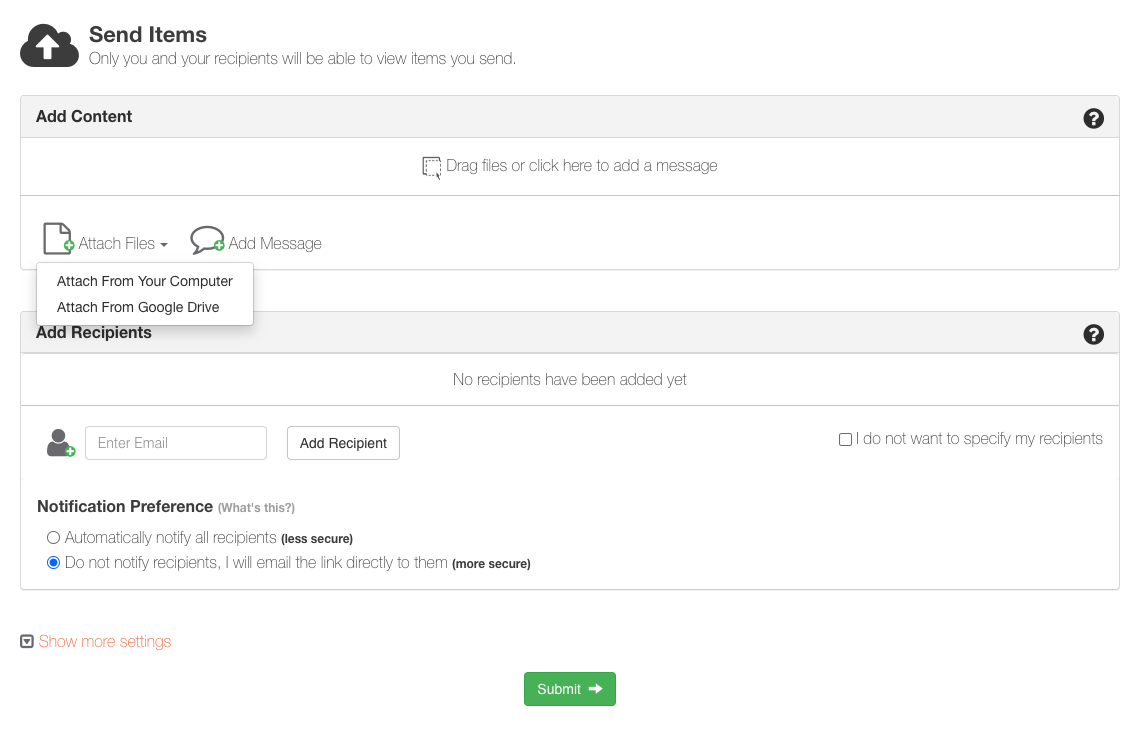
Send Items upload from Google

#####

Attaching files from a Workspace:
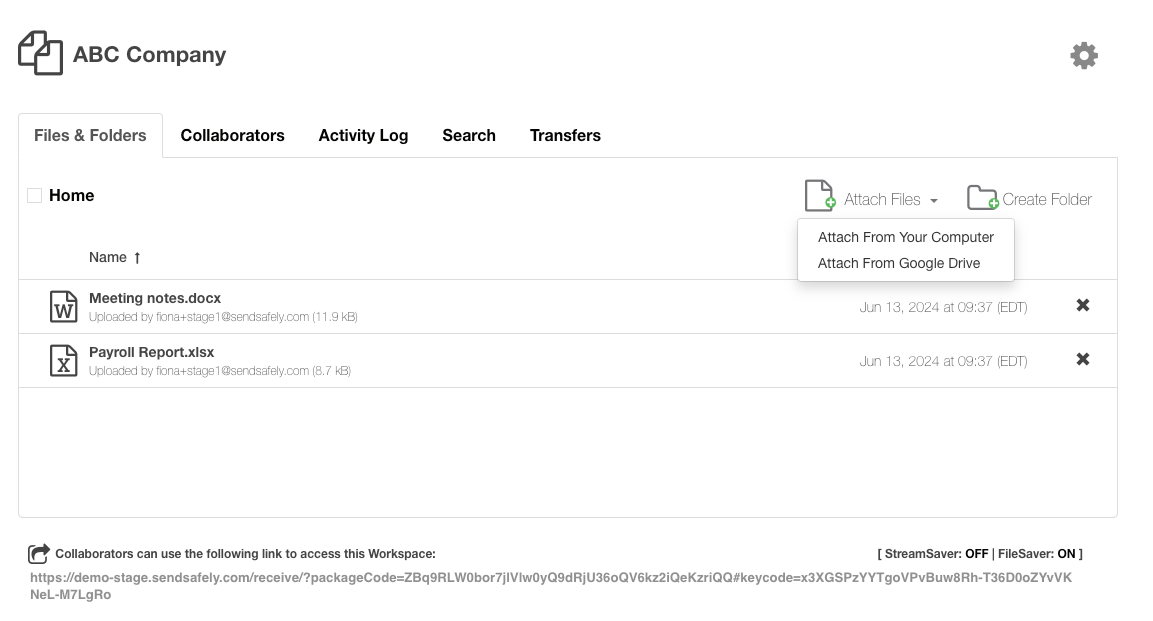
Workspace upload from Google

After selecting Attach From Google Drive , users are prompted to authenticate to Google and are then presented with their Google Drive file picker.
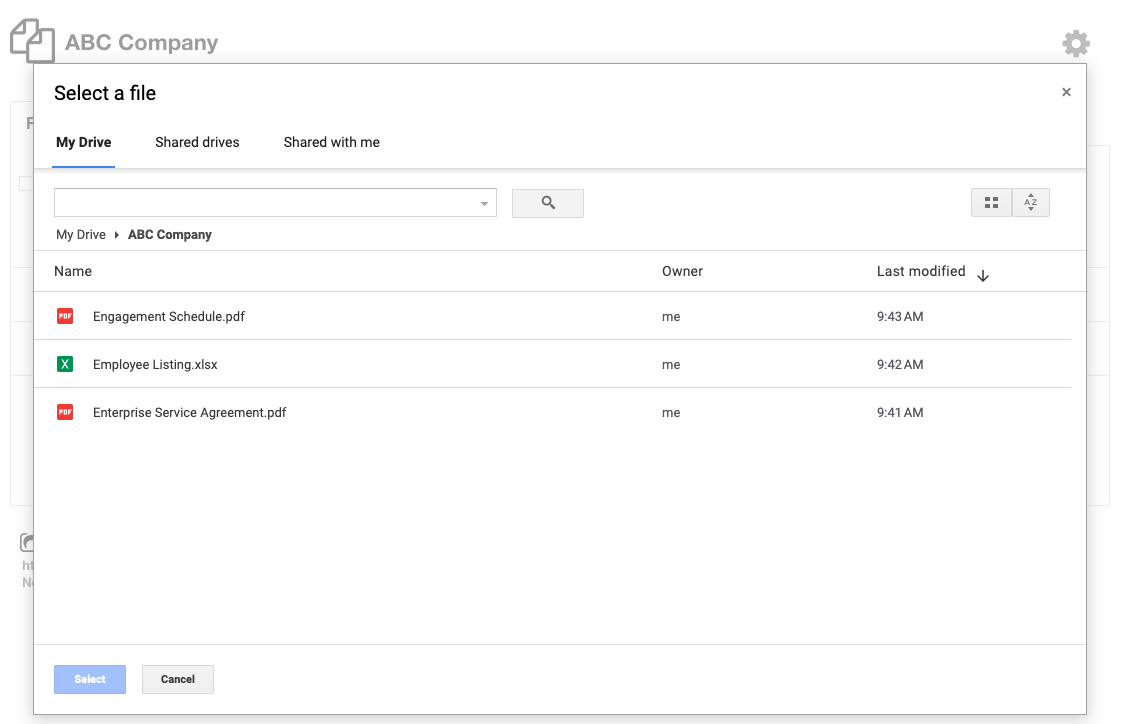
Google Select A File

Selected files are encrypted and uploaded to SendSafely client side in the user’s browser, meaning SendSafely never has access to the unencrypted files from Google, maintaining end-to-end encryption at all times.

Upload from Google Drive is available to all SendSafely for Business plans. If you would like to opt-in to this new feature, please contact success@sendsafely.com. .


SendSafely: Encrypted File Transfer for Modern Business

If your organization needs a secure way to transfer files with customers or business partners, our platform might be right for you. Contact us today.

Request a Demo

Frequently asked questions

Can I upload files from Google Drive to SendSafely?

Yes. SendSafely’s Google Drive integration lets you attach files to both Workspaces and Transfers (Send Items) without downloading them to your computer first. Select “Attach From Google Drive” from the drop-down next to the Attach Files button.

Does attaching from Google Drive keep files end-to-end encrypted?

Yes. Selected Google Drive files are encrypted and uploaded client side in the user’s browser, so SendSafely never has access to the unencrypted files. End-to-end encryption is maintained throughout. Learn how SendSafely encryption works.

How do I attach a Google Drive file to a SendSafely Workspace?

Open the Workspace, choose “Attach From Google Drive” from the drop-down beside the Attach Files button, authenticate to Google, and pick files in the Google Drive file picker. Learn more about Workspaces.

Does the Attach Files button still open my local file picker?

Yes. Clicking the Attach Files button continues to open the local file picker as before. The Google Drive option is a separate choice in the drop-down next to it.

Which SendSafely plans include upload from Google Drive?

When announced in 2024, upload from Google Drive was available to all SendSafely for Business plans as an opt-in feature. Customers enabled it by contacting success@sendsafely.com.

Written by Brian Holyfield