Our latest update to SendSafely Actions is here! In this new update, we are rolling out a simple point-and-click editor for automating workflow events, actions and filters. When combined with our library of pre-built action templates, you can now quickly and easily configure automations for anti-virus scanning, document archival and more!
Admins launch Actions from a new menu option in the top right corner of the SendSafely web portal. From the Actions home page, admins can view and edit existing workflows and review execution logs. Admins can also create new enterprise workflows by clicking the “New Workflow” button.
Below, we will step through the process of configuring a new workflow:
####
Name your Workflow
After clicking the “New Workflow” button in the top right corner of the Workflow listing, the first step is to edit the default Workflow name to something meaningful that describes the workflow, such as “AV Scanning”

Choose a trigger Event
Next, choose a trigger event to set the workflow in motion. We currently support two events, covering all the ways a file can be added to SendSafely:
- A file is uploaded to a Workspace
- A Package is finalized (Send Item or Dropzone Upload)

####
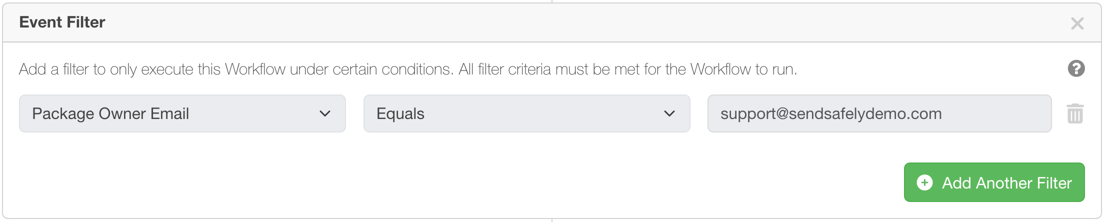
Apply an Event filter
Below the event, click the + icon to add one or more event filters. Event filters provide very granular control over when your workflow is triggered. For example, you can filter the secure package finalized event to just Dropzone uploads, or even a specific Dropzone only. Other filters include events triggered by guest users or events occurring in a specific Workspace.
####
Add an Action
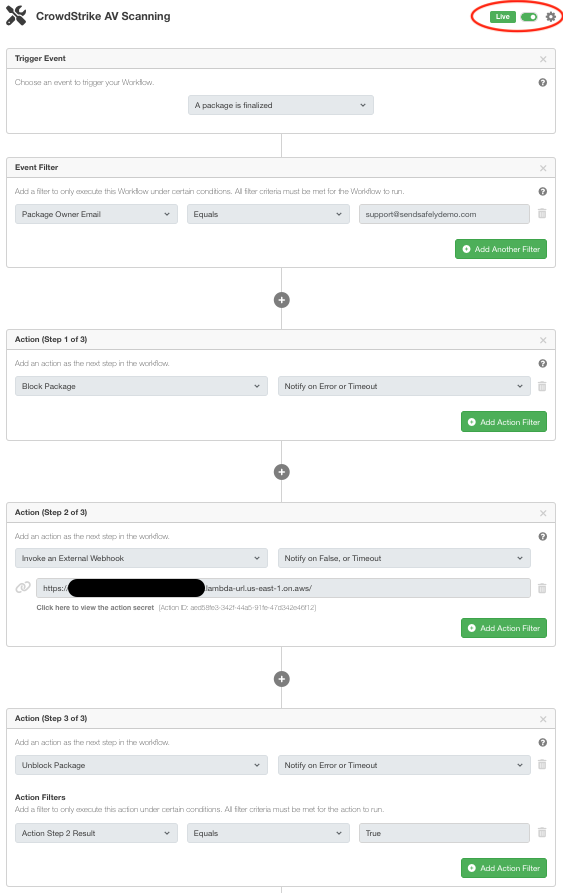
Actions are the steps that power your workflow. Actions are executed sequentially after the trigger event. There are two types of actions: Native Actions and External Actions.
Native Actions
Native actions are pre-built and execute internally within SendSafely. These actions cannot access the content of encrypted files or messages and operate only on file meta-data. We currently support the following Native Actions:
- Block / Unblock Files: Blocks all access to the file except for admins and file owners. Blocked files cannot be viewed or downloaded by regular users in the UI.
Example use case: Block user access to a file until Anti-Virus scanning completes. If the scan completes successfully, unblock access to the file.
- Hold / Release Files: Prevents deleting or changing a file, but allows download/view access.
Example use case: Hold a file to preserve the original copy until document archiving has occurred. Once the document has been archived, release the file for editing/deletion.
- Delete File/Package: Deletes the File or Package that triggered the workflow.
Example use case: Automatically delete a file quarantined by an A/V scan.
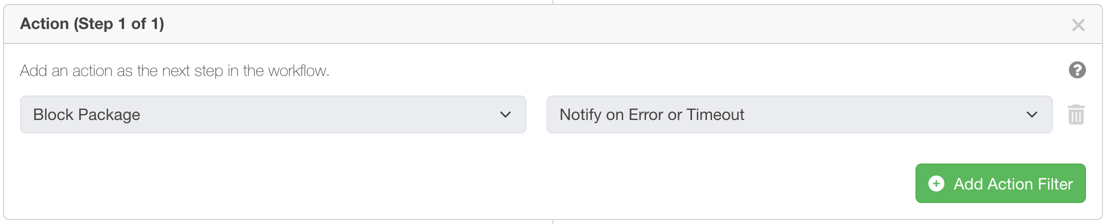
You can select a native action from the dropdown menu, and choose to be notified on certain conditions, such as errors or timeouts.
####
External Actions
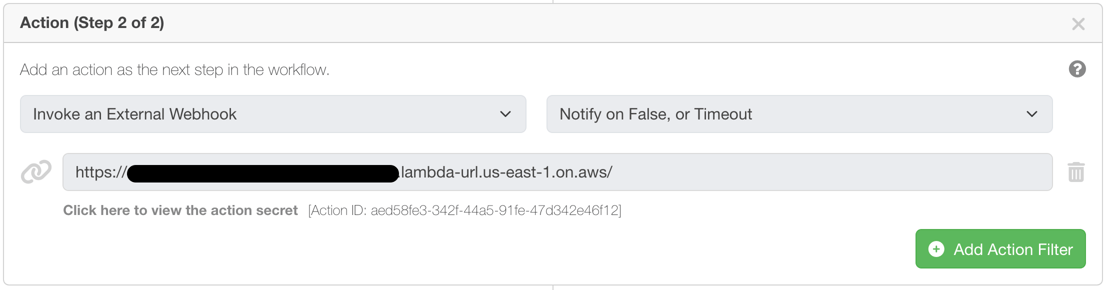
External actions execute outside of SendSafely, often by a third-party platform like an AV scanner, DLP analyzer or document archival solution. They are designed to allow access to encrypted content and perform authenticated API calls to other systems. External actions require their own set of SendSafely credentials for decrypting secure content (API Key + Trusted Device Key). You can create your own external action or use templates published by SendSafely.
Choose “Invoke an External Webhook” from the dropdown to invoke an external action.
Add an Action Filter
You can add filters to each action to limit when they execute. Action filters can also filter upon the results of a previous step in the Workflow, for example, you can filter a ‘Delete Package’ action to only run if the previous Action step for AV scanning returns a value indicating the file has been quarantined.

###
Configure Workflow Settings
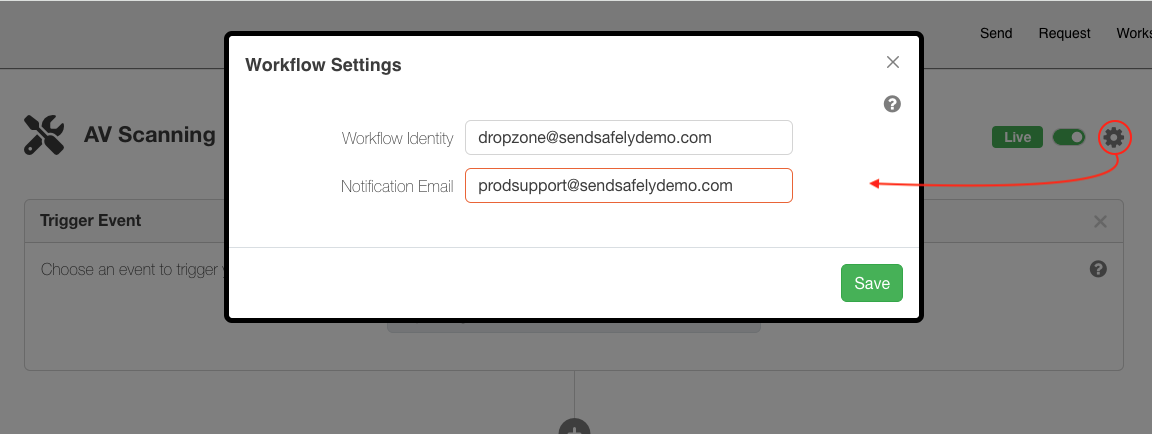
Before turning on your Workflow, configure Workflow settings by clicking the cog icon in the top right hand corner. You can specify the following:
-
Workflow Identity: The workflow will run as this user
-
Notification Email: Status notifications will be sent to this address
####
Turn on the Workflow
The final configuration step is to set your Workflow live! The next time a trigger event that matches your criteria occurs, your workflow will run! You can monitor execution logs from the Workflow listing, and if necessary replay any errors.
Ready to transform your data exchange workflows? Contact the SendSafely team today for a demo and see how SendSafely Actions can streamline your operations while prioritizing security at every step.
SendSafely: Encrypted File Transfer for Modern Business
If your organization needs a secure way to transfer files with customers or business partners, our platform might be right for you. Contact us today.
Request a Demo