
Workspace collaborators can now easily rearrange multiple files and folders within a Workspace using the “Move” menu option. Simply select the items you wish to move and choose the destination folder or sub folder. The new move feature is available for collaborators with Contributor, Owner or Manager roles.
To begin, check the box next to the files and folders to be moved. Selecting items automatically displays the Move menu option.
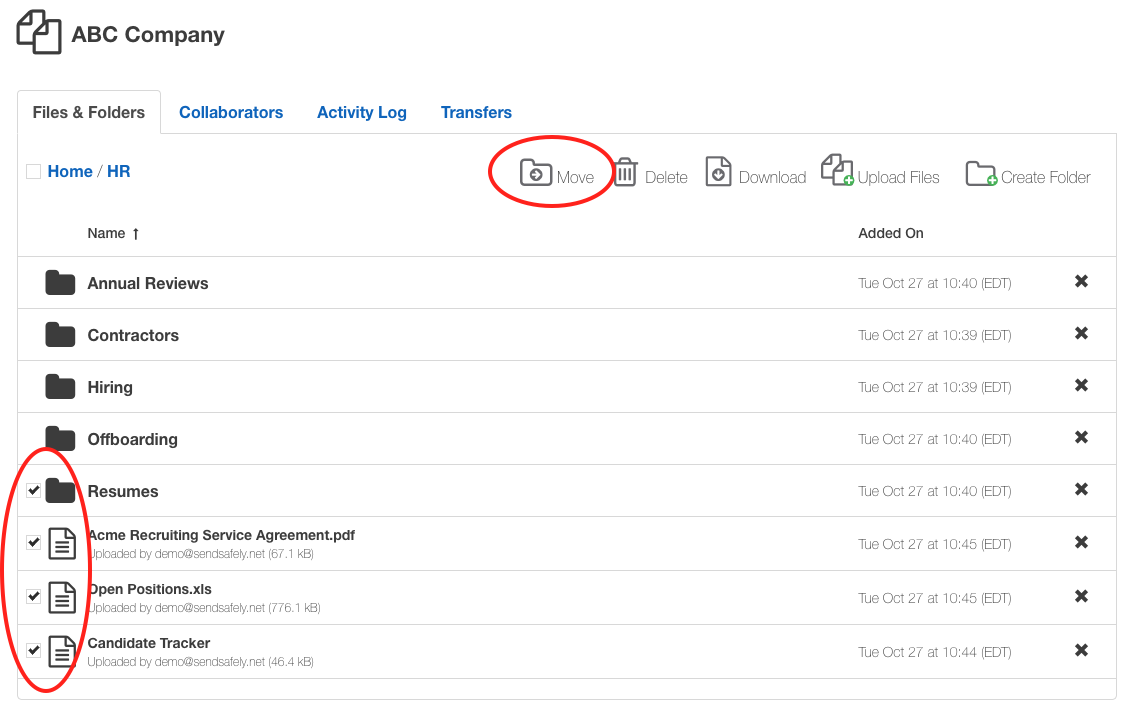
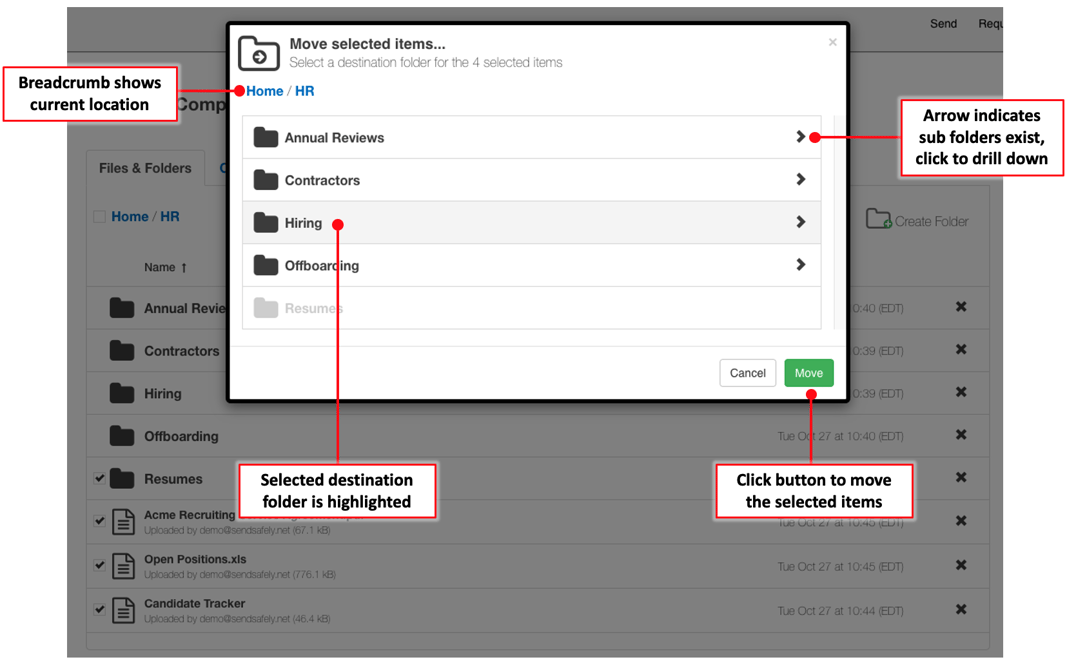
Clicking the Move option displays the Workspace folder hierarchy. You can navigate both up and down the folder listing to select your destination folder.
- The breadcrumb in the top left corner shows your current location in the Workspace. Click on any parent folder listed in the breadcrumb to navigate up the folder hierarchy
- The “>” arrow indicates child subfolders exist within a folder. Click on the arrow to move down the folder hierarchy
- You can choose a destination folder by either highlighting the folder row (the row color will change to grey) or by clicking into that folder
- Once you have chosen the correct destination, click the Move button
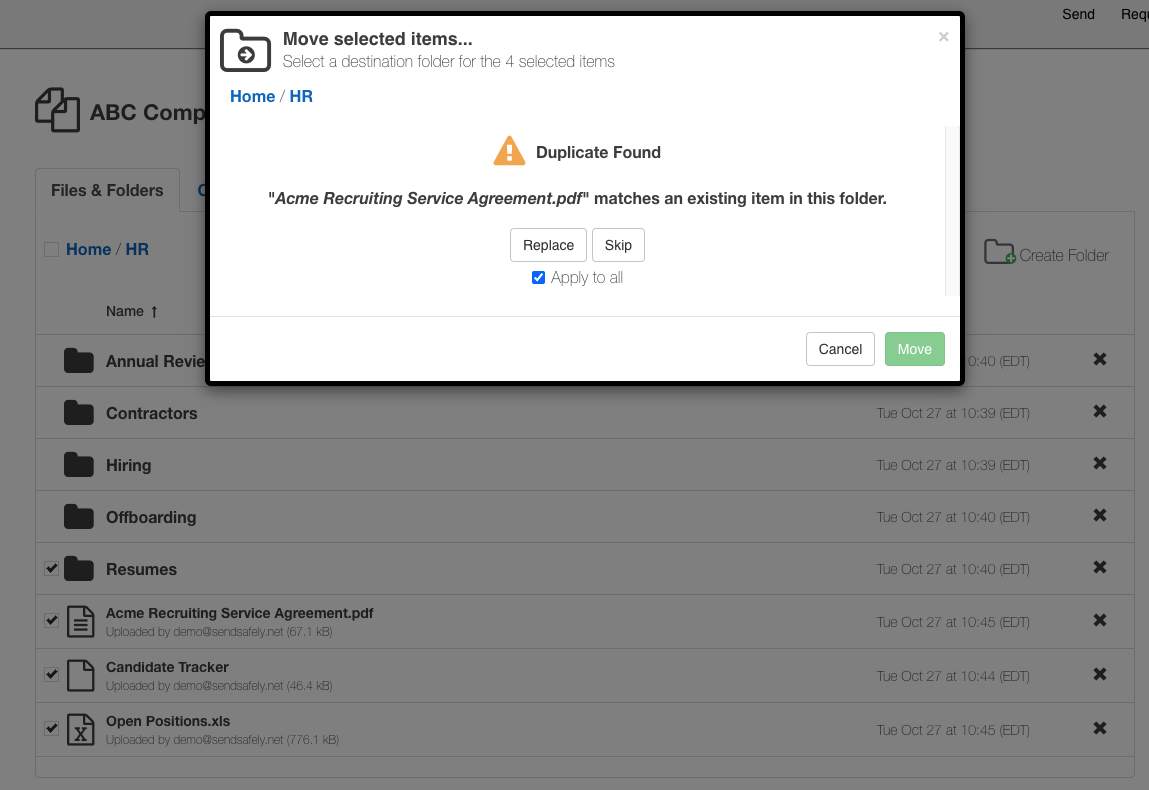
A progress tracker reports the status of the move and whether any duplicate files or folders exist in the destination folder.
- If a duplicate file or folder exists you are prompted to either “Replace” or “Skip” the file, and optionally whether to apply this decision to all subsequent duplicates
- You can also cancel the move by clicking the Cancel button.
SendSafely: Encrypted File Transfer for Modern Business
If your organization needs a secure way to transfer files with customers or business partners, our platform might be right for you. Contact us today.
Request a Demo


