Skip to content
New AI Custom Form BuilderDescribe the intake form. It ships branded and end-to-end encrypted.AI Custom Form Builder is here See it build
Integrations

Streamline case work with our minimized file previewer  for Salesforce

Brian Holyfield · 2 min read
Streamline case work with our minimized file previewer  for Salesforce

The latest release of our Salesforce App (version 1.11.0) introduces an exciting new feature: the ability to minimize file previews and overlay them on top of our SendSafely lighting app.

With this new option, agents can view files while continuing to work on the case simultaneously, such as typing an email, reviewing case comments, or updating other components. Switching between full-screen and minimized modes makes case handling smoother, faster, and far more efficient.

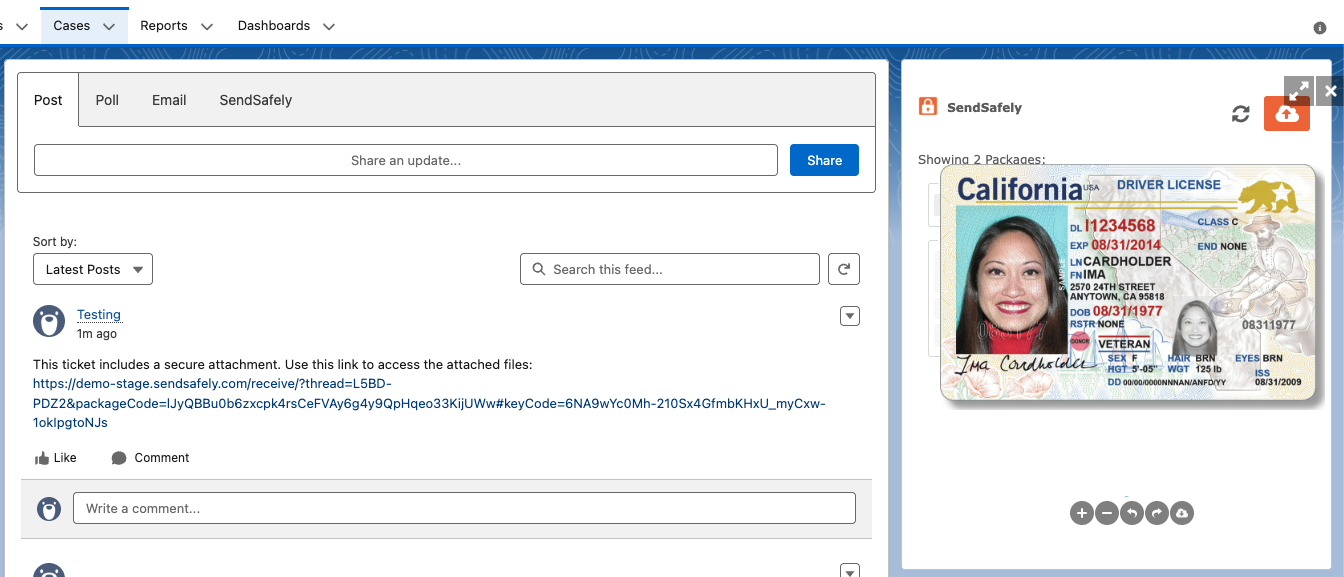
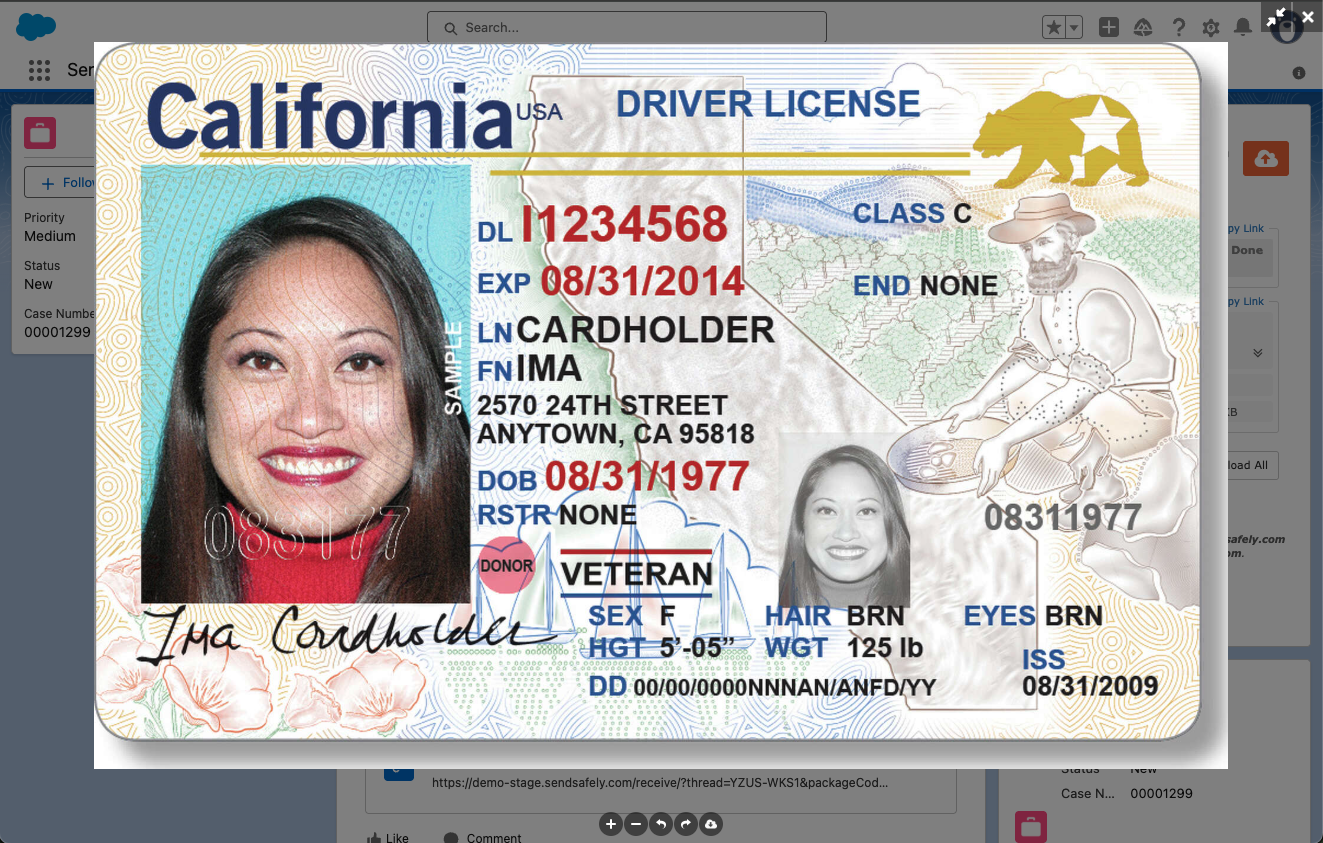
By default, file previews (images, pdfs, and video) will still open in full screen mode, which is great for small print and fine detail, but blocks the ability to see and interact with other case components. To keep working on the case while still viewing the file, click the minimize icon in the top right corner. The previewer will shrink and overlay on top of the SendSafely app, allowing full access to the rest of the case.

Full Screen Preview:File Preview 3
####

Minimized preview:

File Preview 2

The new, minimized file previewer is available in the SendSafely for Salesforce app, version 1.11.0. Download this latest version from the Salesforce App Exchange today!

SendSafely for Salesforce is available on SendSafely Enterprise and Business plans. For more information, contact success@sendsafely.com.


SendSafely: Integrated File Transfer for the Apps you Love

If you are looking for a secure way to send or receive files with anyone, or simply need a better way to transfer large files, our platform might be right for you.

Request a Demo

Frequently asked questions

Can I view a SendSafely file while working on a Salesforce case?

Yes. Starting with SendSafely for Salesforce app version 1.11.0, agents can minimize a file preview so it overlays the SendSafely app, leaving the rest of the case available for tasks like writing an email, reviewing case comments, or updating other components.

How do I minimize a file preview in the SendSafely Salesforce app?

Open the file preview, which displays in full screen by default, then click the minimize icon in the top right corner. The previewer shrinks and overlays on top of the SendSafely app, and you can switch back to full screen when needed.

Which version of the SendSafely Salesforce app adds the minimized previewer?

Version 1.11.0 of the SendSafely for Salesforce app, released in November 2025, adds the minimized previewer. The update is available from the Salesforce AppExchange. See the Salesforce integration for more about the app.

Which file types open in the SendSafely Salesforce previewer?

Images, PDFs, and video files can be previewed. They open in full screen mode by default, which works well for small print and fine detail, and can be switched to the minimized view to keep working on the case.

Which SendSafely plans include the Salesforce app?

SendSafely for Salesforce is available on the Business and Enterprise plans. For more information about the Salesforce app and plan availability, contact the SendSafely team at success@sendsafely.com.

Written by Brian Holyfield