
SendSafely for Slack combines the convenience and efficiency of Slack with the protection of SendSafely’s end-to-end encryption. SendSafely for Slack lets you conveniently launch SendSafely using a simple slash command.
Once an Admin has installed SendSafely for Slack in your Slack Workspace, any SendSafely user can send a secure message by typing “/SendSafely” into any DM or channel. This slash command posts a private message back to you with a direct link to encrypt a message for the channel using SendSafely.

After clicking the link, you can add a secure message (password, API Key, etc.), choose whether to authenticate recipients and/or enforce access limits.
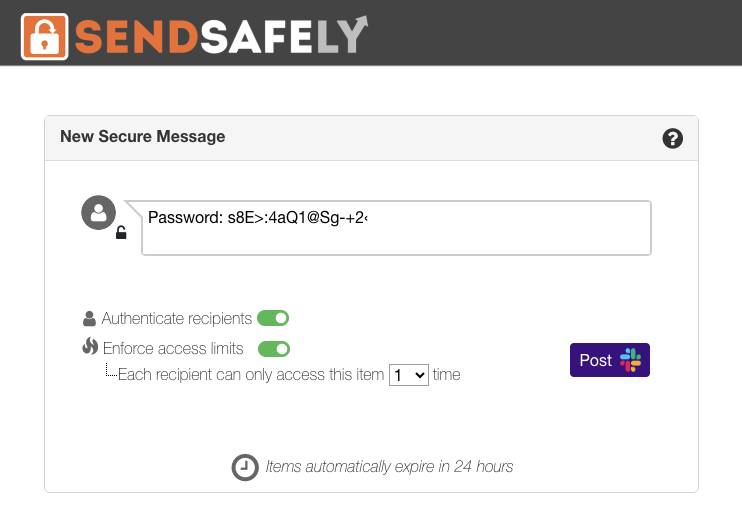
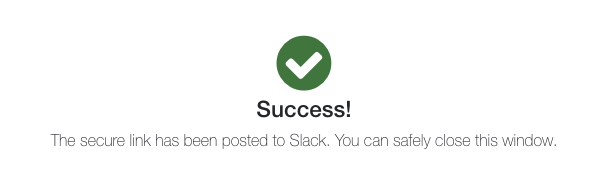
Clicking the Post button encrypts the message and sends a secure link to the channel. Messages automatically expire after 24 hours.
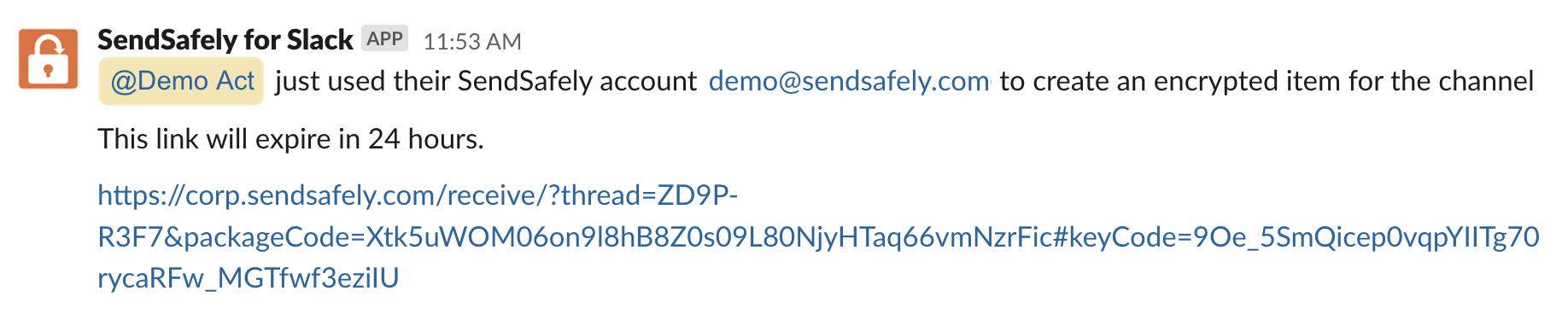
Channel members can access the secure message by clicking the SendSafely link that gets posted to the channel.
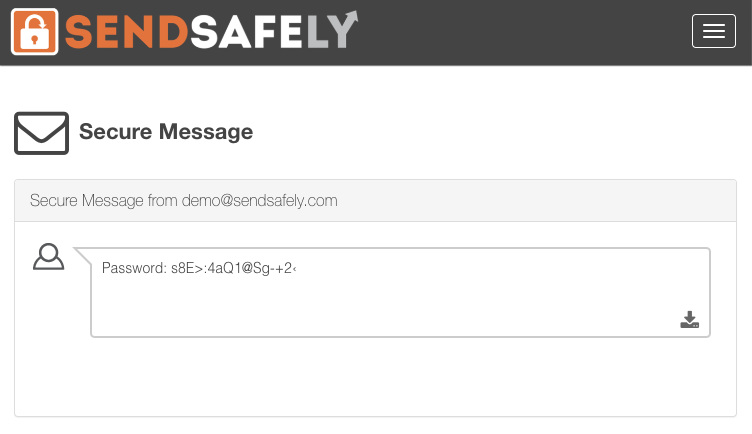
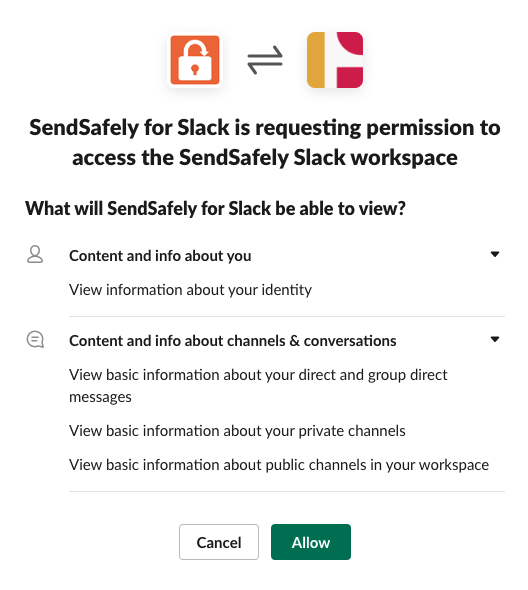
The first time you launch SendSafely for Slack, you will be asked to grant limited Slack permissions to SendSafely. SendSafely uses these permissions to authenticate recipients. If you deny this request, you can still use SendSafely but the recipient verification option will be unavailable.
Installing SendSafely for Slack
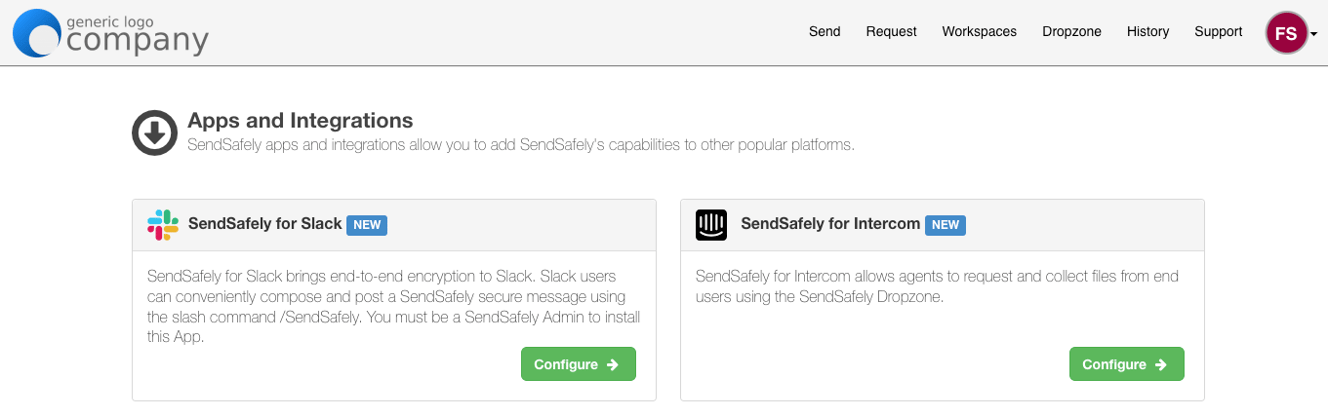
The SendSafely Slack app is not listed in the Slack Marketplace, instead Slack administrators can install the SendSafely Slack app as a private app following the instructions outlined here. Once installed, the app can be managed from the SendSafely web portal Apps and Intergrations page.
If you would like to learn more, you can check out our Help Center article on using the SendSafely Slack app.
SendSafely: Encrypted File Transfer for Modern Business
If your organization needs a secure way to transfer files with customers or business partners, our platform might be right for you. Contact us today.
Request a Demo


