Skip to content
New AI Custom Form BuilderDescribe the intake form. It ships branded and end-to-end encrypted.AI Custom Form Builder is here See it build
Product

Enterprise Reporting Updates

SendSafely Enterprise Administrators can now run detailed reports on users and configuration settings from the Enterprise Console.

Brian Holyfield · 1 min read
Enterprise Reporting Updates

SendSafely Enterprise Administrators can now run detailed reports on users and configuration settings from the Enterprise Console.

Reports are securely delivered in .CSV format to the requester’s SendSafely account (SendSafely History > Received Items list) and are available for 15 days. Reports on organization users, Workspaces and Dropzones are available today, with additional reports on user activity coming soon.

You must be a SendSafely Administrator to run reports from the Enterprise Console. Simply choose from the available reports and click the Request Report button.
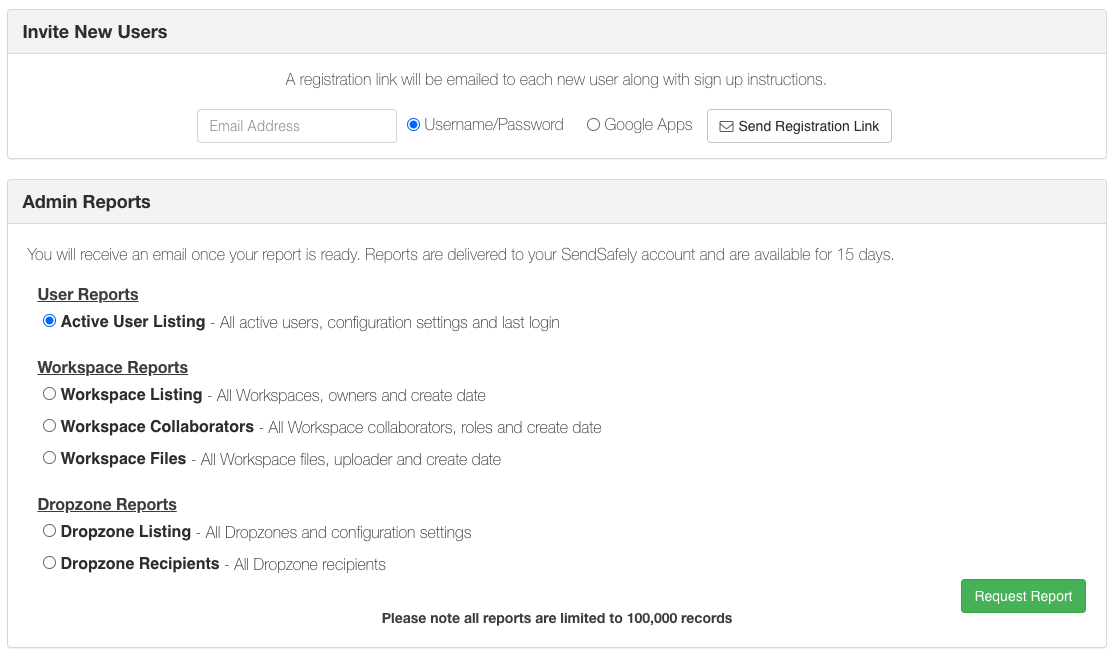
Reports Listing

Reports are run in the background and once complete delivered to your SendSafely account. You can access the report by clicking the link in the email notification or from your Received Items list using any of your SendSafely Trusted Browsers.
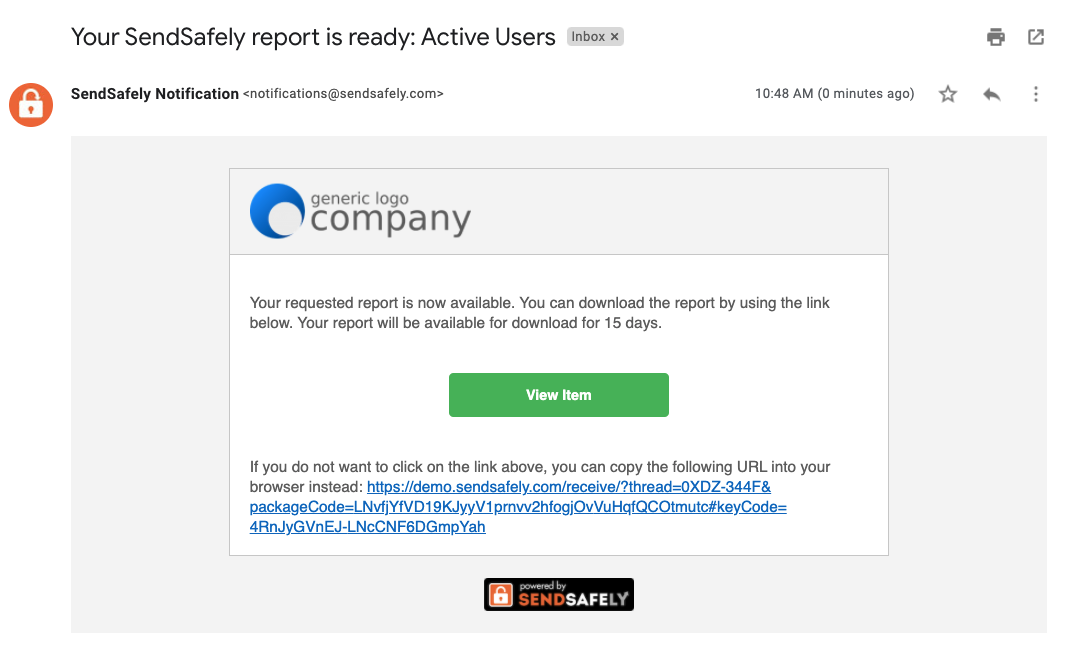
email-2

Reports are available in CSV format and by default will expire after 15 days. You may extend the expiration period on the Status page, or copy the the report to a Workspace if you require the data for longer periods of time.
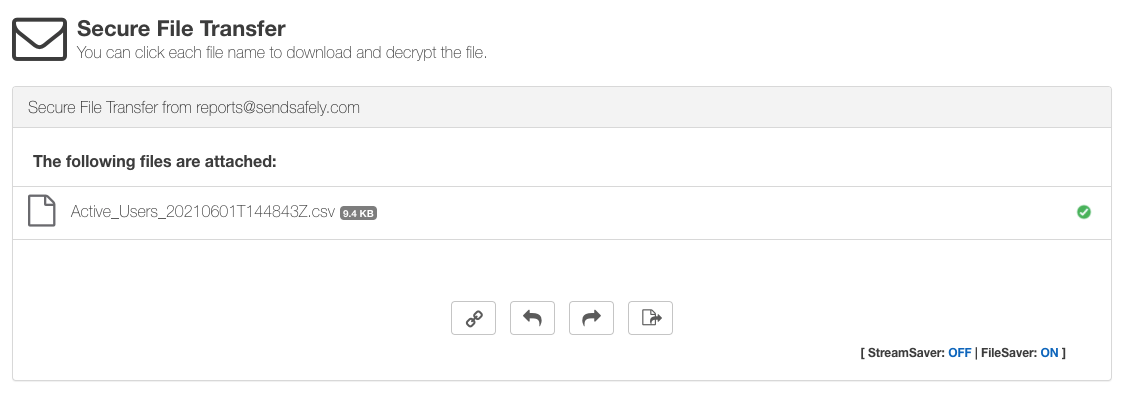
Reports Download Screen

We plan on releasing more admin reports over the next several months, so stay tuned for more updates!


SendSafely: Encrypted File Transfer for Modern Business

If your organization needs a secure way to transfer files with customers or business partners, our platform might be right for you. Contact us today.

Request a Demo

Frequently asked questions

What reports can SendSafely Enterprise Administrators run?

In the 2021 release, administrators could run reports on organization users, Workspaces and Dropzones from the Enterprise Console, with additional user activity reports planned. You must be a SendSafely Administrator to run them.

How are SendSafely Enterprise Console reports delivered?

Reports run in the background and are securely delivered in CSV format to the requester’s SendSafely account, under SendSafely History > Received Items. You can open a report from the email notification link or from your Received Items list using any of your SendSafely Trusted Browsers.

How long are SendSafely admin reports available?

When these reporting updates shipped in 2021, reports expired after 15 days by default. You could extend the expiration period on the Status page, or copy the report to a Workspace if you needed to keep the data longer.

How do I request a report in the SendSafely Enterprise Console?

Sign in as a SendSafely Administrator, open the Enterprise Console, choose from the available reports and click Request Report. The report is generated in the background and delivered to your SendSafely account when complete.

Written by Brian Holyfield