Skip to content
New AI Custom Form BuilderDescribe the intake form. It ships branded and end-to-end encrypted.AI Custom Form Builder is here See it build
Engineering

Storing Secure File Transfers in a Workspace

Users can now copy files they receive into a SendSafely Workspace for long term storage with a click of a button.

Brian Holyfield · 2 min read

Users can now copy files they receive into a SendSafely Workspace for long term storage with a click of a button. This new feature makes it easy to organize and manage access to important files for extended periods of time. The new Copy to Workspace option is available on the download screen for any file sent or received using SendSafely, including Dropzone uploads, Personal URL uploads and replies.

You can choose to copy a single file by clicking the Copy to Workspace button on the file row or you can copy all files in the package by choosing the Copy to Workspace button at the bottom of the screen.
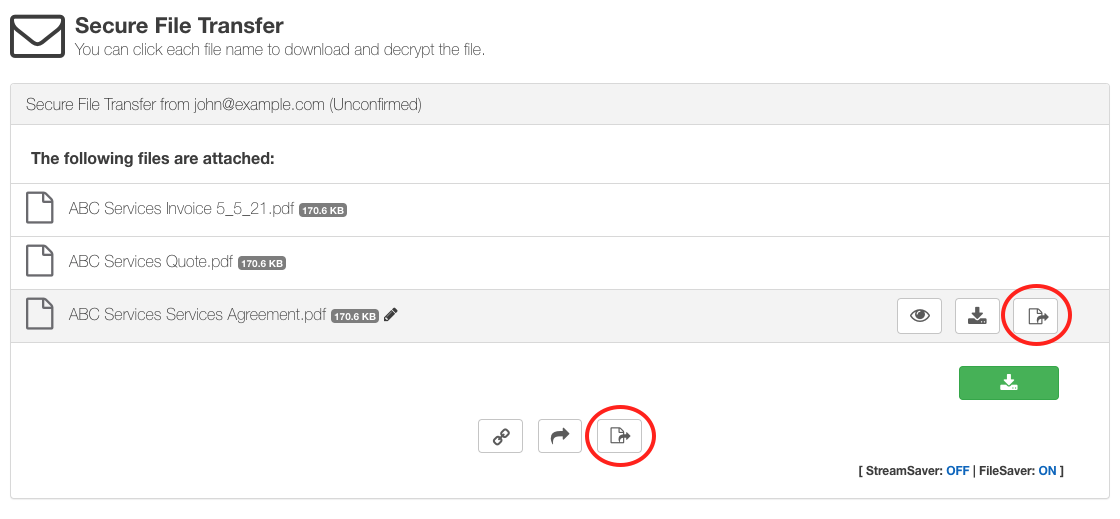
Copy to Workspace - buttons

Once this option is selected, you will be prompted to choose a destination from the list of available Workspaces. The list shows all active Workspaces that you either contribute to or own (Owner, Manager, Contributor, or Limited Contributor roles). Note that you must be using a trusted browser with access to the Workspace in order to complete the copy.
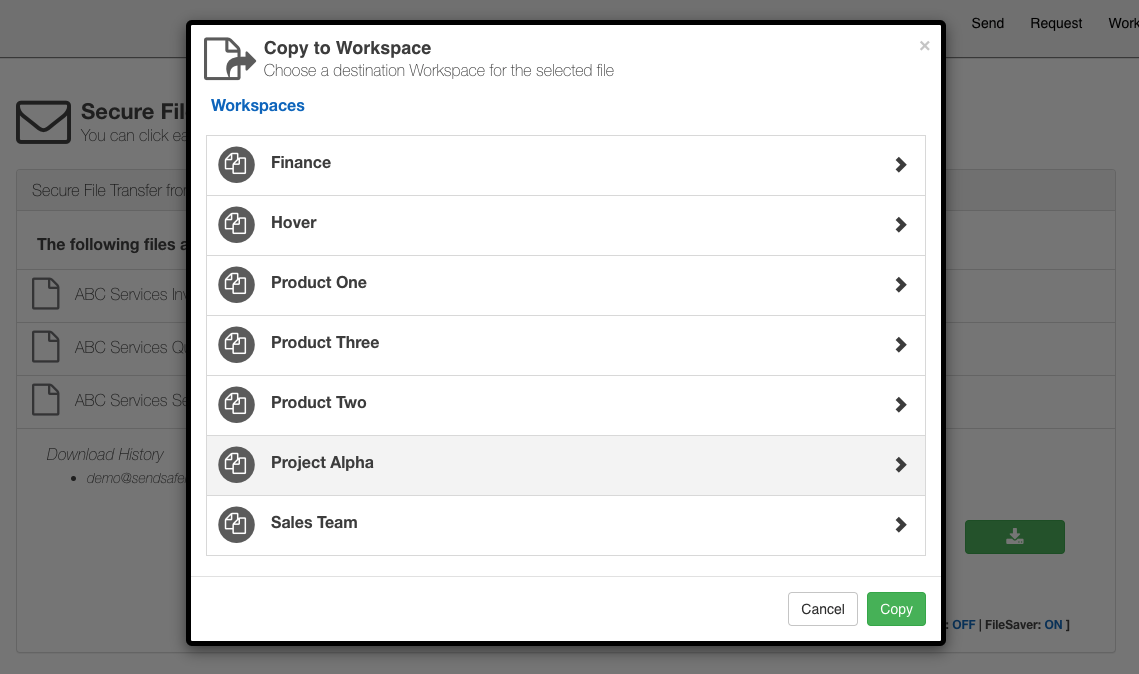
Destination Workspace

You can copy into the main folder by selecting the Workspace, or choose to drill down and copy to a specific sub folder.
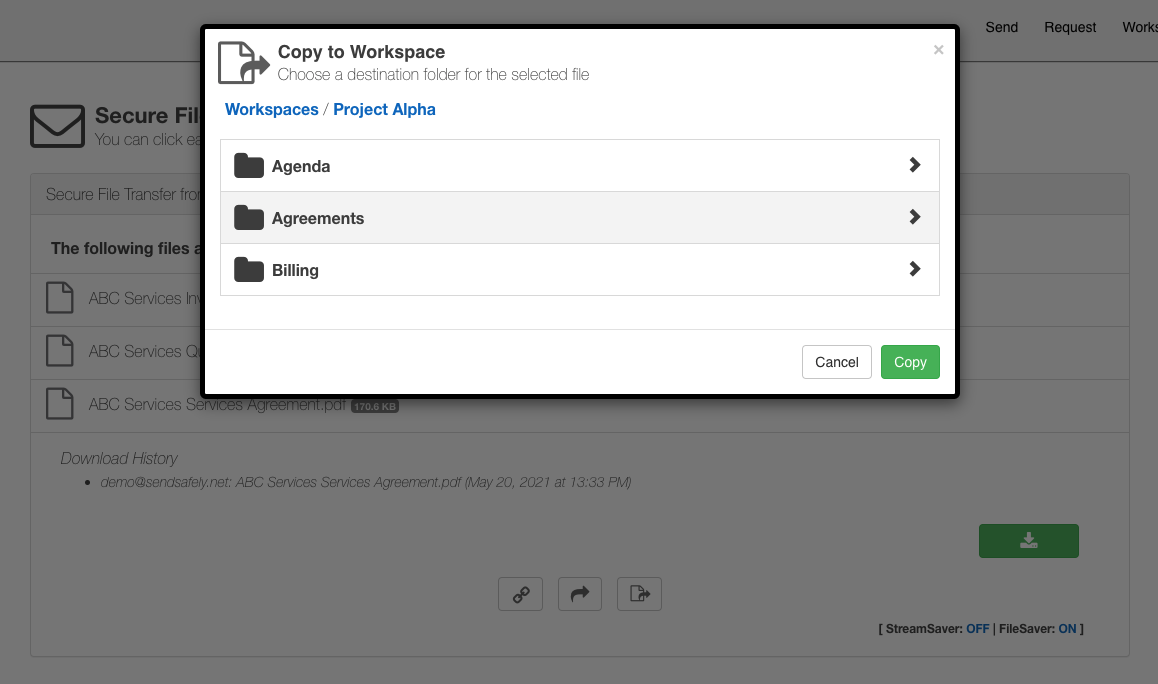
Sub Folders

Once complete you can either navigate to the destination Workspace, or return to the download screen
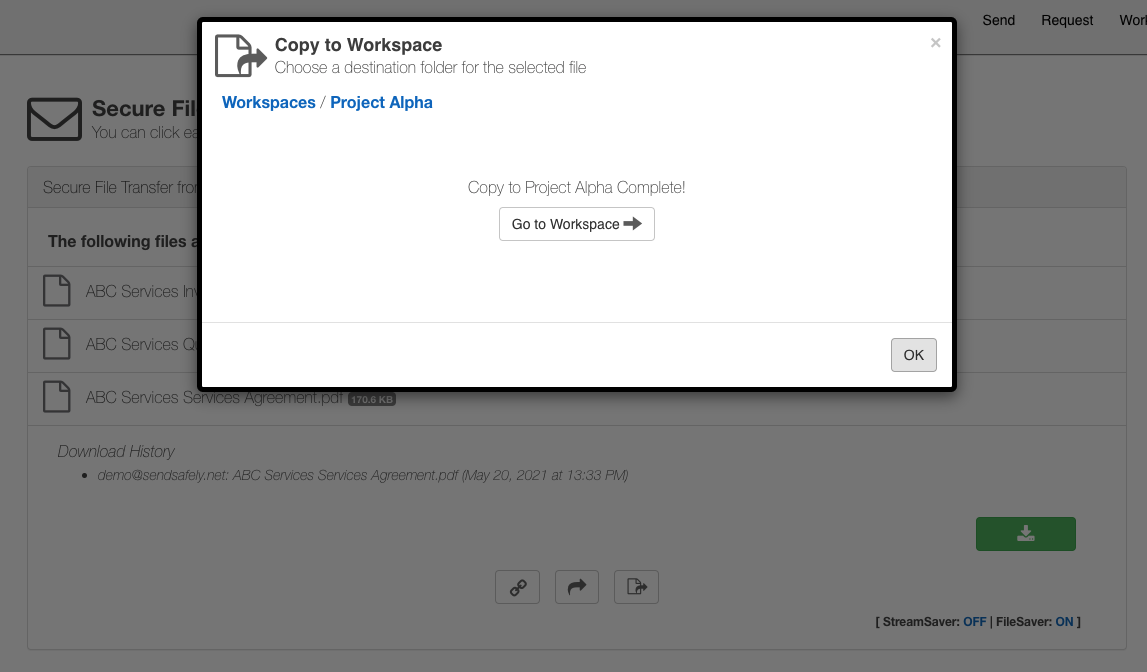
Copy Complete


SendSafely: Encrypted File Transfer for Modern Business

If your organization needs a secure way to transfer files with customers or business partners, our platform might be right for you. Contact us today.

Request a Demo

Frequently asked questions

Can I save files I receive in SendSafely to a Workspace?

Yes. The Copy to Workspace option, added in 2021, appears on the download screen for any file sent or received with SendSafely, including Dropzone uploads, Personal URL uploads and replies. It lets you keep important files in a Workspace for long-term storage.

How do I copy a single file versus a whole package to a Workspace?

Click the Copy to Workspace button on a file’s row to copy just that file, or use the Copy to Workspace button at the bottom of the screen to copy all files in the package. You then pick a destination Workspace and, optionally, a sub folder.

Which Workspaces can I copy received files into?

The destination list shows all active Workspaces you own or contribute to. In the 2021 release this covered the Owner, Manager, Contributor and Limited Contributor roles.

Why do I need a trusted browser to copy files to a Workspace?

You must be using a trusted browser that has access to the destination Workspace to complete the copy. Trusted browsers hold the keys used to access encrypted items; SendSafely’s blog explains how trusted browsers work.