
Our Trusted Browser feature is designed to streamline the process of accessing items from your frequently used devices. With a Trusted Browser, you no longer need to rely on the sender providing a secure link in order to access new shared items. You’ll still need your username and password to access SendSafely, but once authenticated you’ll be able to access any item that anyone has shared with you.
This post will cover how Trusted Browsers work in order to provide our technical users with a basic understanding of what’s happening under the hood. Before we dive into detail, it’s important to recap SendSafely’s key exchange process. For a more concise list of best practices and solutions to common problems related to Trusted Browsers, consult our help center article on this topic.
SendSafely Key Exchange
The magic behind SendSafely’s “Zero Knowledge” security model lies in the unique method we use for key exchange, commonly referred to as key splitting. Key splitting is the concept of taking a single encryption key and breaking it up into multiple parts, each of which is stored and/or communicated separately to other parties.
In the case of SendSafely, we encrypt every set of items you upload using a unique encryption key. Key splitting is then used to divide the key into two halves, which we refer to as the Server Secret and Client Secret.
- The Server Secret half of the key is stored on the SendSafely server
- The Client Secret half of the key is stored on the sender’s machine (SendSafely never has access to this value)
When you want to share an item with someone, you (the sender) provide them with a secure link that includes the Client Secret half of the key embedded in the URL anchor of the hyperlink. SendSafely never has access to or knowledge of the Client Secret, which is what prevents us from having access to your data at any point in time.
How Trusted Browsers Work
With Trusted Browsers enabled, SendSafely will prompt you every time you log in from an unrecognized browser to see if you want to add the browser to your Trusted Browser list.
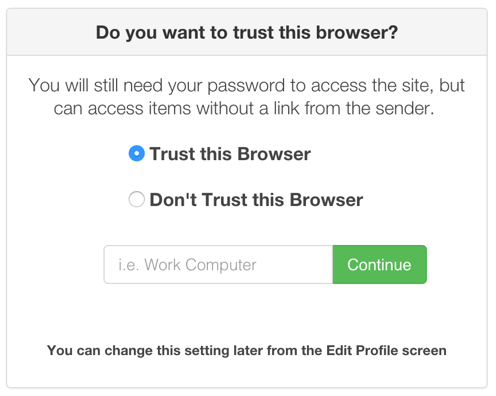
NOTE: You should only designate a browser as trusted if it runs on a device that you have control over. Never add a public or shared browser to your list of trusted devices.
When you designate a browser as trusted, our client-side API generates a unique public/private key pair for use by that browser (referred to as a Trusted Device Key). Unlike regular encryption keys, where the same key is used to encrypt and decrypt information, public/private keys each only perform one of those functions and not both. So anything that gets encrypted with the public key, for example, can only be decrypted with the private key. As the name implies, the private key is secret and only known by the browser…SendSafely never has access to that part of the key. The public key, as the name implies, is not secret and is uploaded to our servers.
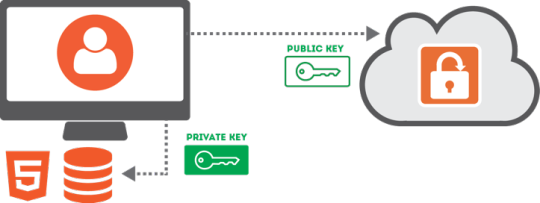
A unique trusted browser key pair is generated for every trusted browser. The public key is uploaded to SendSafely while the private key is securely stored in your browser’s HTML5 Local Storage.
Every time someone sends you a new item, the sender’s machine will automatically receive a copy of your Trusted Browser public keys in order to encrypt and upload a copy of the Client Secret. Since only the private key stored by a Trusted Browser can be used to decrypt these values, you can be assured that SendSafely still won’t have the ability to view your data.
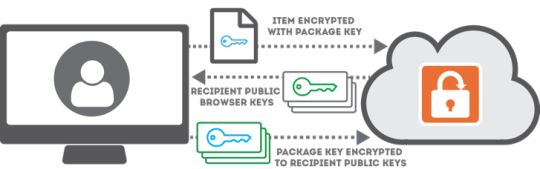
Diagram depicting the high-level data flow when sending an item to a user with Trusted Browsers
Instead of relying on the sender to share a secure link with you, SendSafely will notify you of the new item and allow you to access the item from your Trusted Browsers. When you attempt to access items with a Trusted Browser, the browser will provide a key identifier to tell the server which encrypted copy of the Client Secret it needs to view the item.
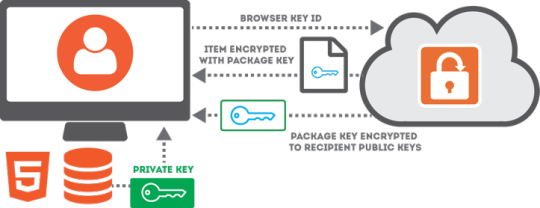
Diagram depicting the high-level data flow when requesting an item using a Trusted Browser
We generally recommend that you designate at least two Trusted Browsers once you start using this feature. Most often these browsers are:
- The browser you normally use to access SendSafely on your work computer
- The browser you normally use to access SendSafely on your mobile device.
Designating at least two Trusted Browsers will ensure that you always maintain access to SendSafely items if you lose access to one of your devices. We also recommend that you export a copy of each private key so that you can easily restore access in the event that you lose access to your trusted browser or you clear your browser cache (which will also delete the browser private key). For more best practices on how to use and manage your SendSafely trusted devices, we recommend reading our help center article on this topic.


