Skip to content
New AI Custom Form BuilderDescribe the intake form. It ships branded and end-to-end encrypted.AI Custom Form Builder is here See it build
Product

Workspace Folder Level Permissions

We are excited to announce that SendSafely Workspaces now supports folder level collaborator permissions.

Brian Holyfield · 2 min read
Workspace Folder Level Permissions

We are excited to announce that SendSafely Workspaces now supports folder level collaborator permissions. This new, more granular access model allows a single Workspace to be used by multiple teams and customers, with each individual limited to only the files and folders they need.

When adding a new collaborator, owners and managers can now choose between granting global access (all files and folders) or restricted access to selected folders only.
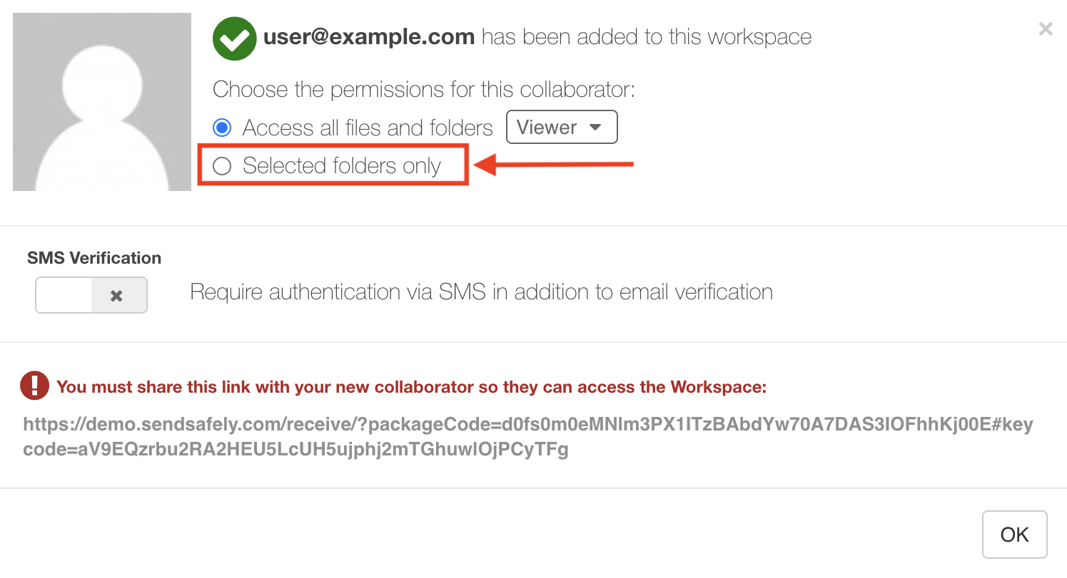
selected_folders_only-1

When the “Selected folders only” option is chosen, you can pick one or more folders from the workspace and assign a specific role to each folder (the viewer role is selected by default).
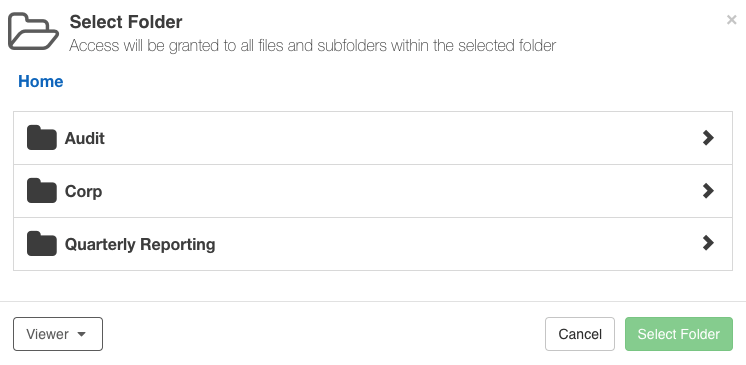
Folder Selection -1

When you grant a folder, the same level of access is automatically granted to all files and subfolders below it. Restricted users will have the “Selected Folders” badge when viewing them in the Collaborator listing.
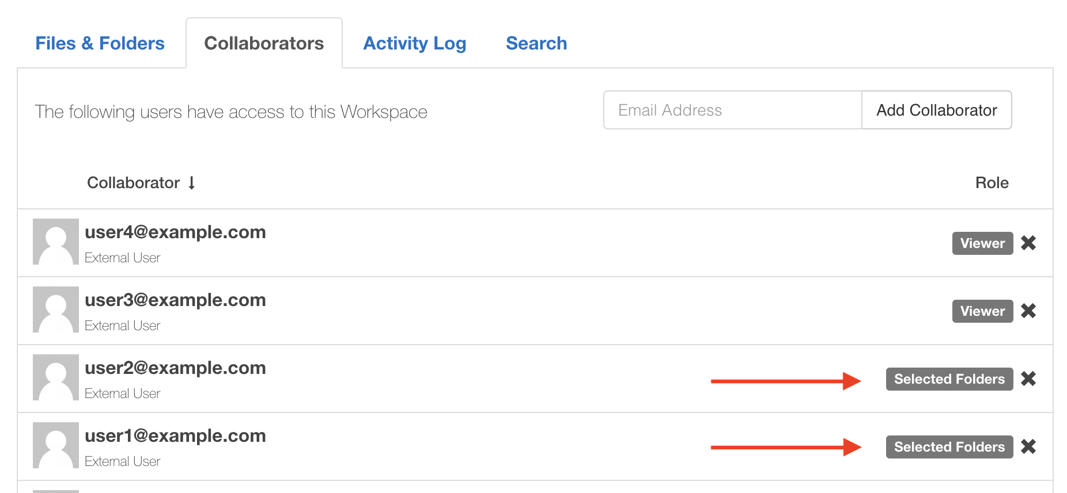
selected_folders_badge

Clicking on the Collaborator row displays the assigned folders. Folders and roles can be added, edited and deleted at any time from this screen.
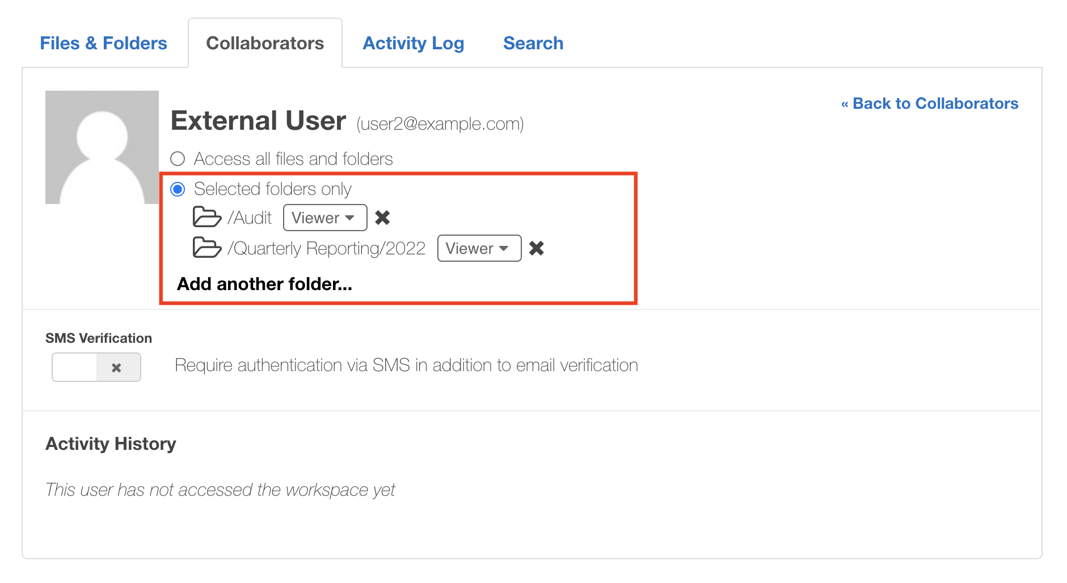
folder_access

Restricted collaborators enjoy a similar Workspace experience as other collaborators, however their view and navigation of the Files & Folders tab is limited only to assigned folders. Restricted collaborators are also unable to view the activity log or use the workspace search feature.
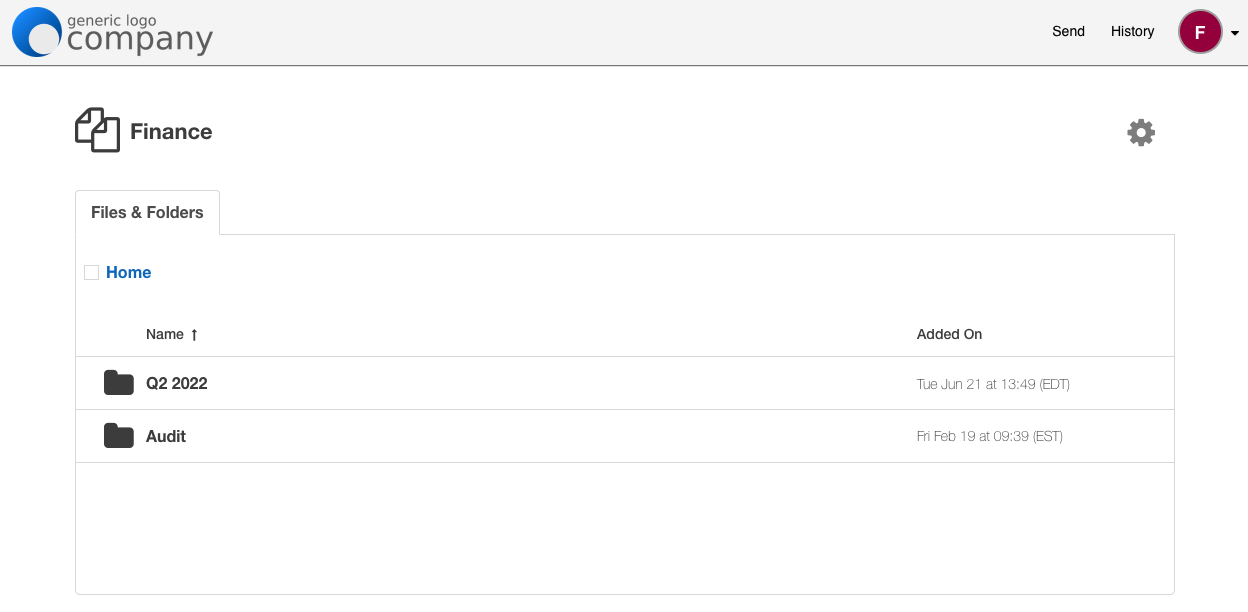
Restricted User Experience

For more information on Workspace folder level permissions or to enable this feature in your enterprise portal, please contact sales@sendsafely.com.


SendSafely: Encrypted File Transfer for Modern Business

If your organization needs a secure way to transfer files with customers or business partners, our platform might be right for you. Contact us today.

Request a Demo

Frequently asked questions

Can I limit a SendSafely Workspace collaborator to specific folders?

Yes. When adding a collaborator, owners and managers can choose global access or “Selected folders only,” then pick folders and assign a role for each. Learn about Workspace roles and permissions.

Do SendSafely folder permissions apply to subfolders?

Yes. Granting access to a folder automatically grants the same level of access to all files and subfolders below it.

What can restricted collaborators see in a SendSafely Workspace?

Restricted collaborators can only view and navigate their assigned folders on the Files & Folders tab. They cannot view the Workspace activity log or use Workspace search.

What is the default role when granting folder access in a Workspace?

When you assign folders to a restricted collaborator, the viewer role is selected by default. You can choose a different role for each folder.

Why use folder-level permissions instead of separate Workspaces?

Folder-level permissions let a single Workspace serve multiple teams and customers, with each person limited to only the files and folders they need. Assigned folders and roles can be added, edited, or removed at any time.

Written by Brian Holyfield