This blog post illustrates how to use a SendSafely Dropzone and our Secure Package Export Utility to automatically move received files into Google Drive for permanent storage or access by other company teams and employees.
In order to enable this workflow, you will need to leverage the following tools:
- SendSafely Package Export Utility - The Package Export Utility is a Windows command line app that allows you to export and save items that are transferred through your SendSafely Enterprise portal. (SendSafely also provides a Node.js script that can be used as an alternative for Mac)
- Google Drive Backup and Sync Utility - The Backup and Sync utility allows you to sync files from a Mac or Windows computer to your Google Drive account.
The diagram and narrative below illustrates the end-to-end workflow.
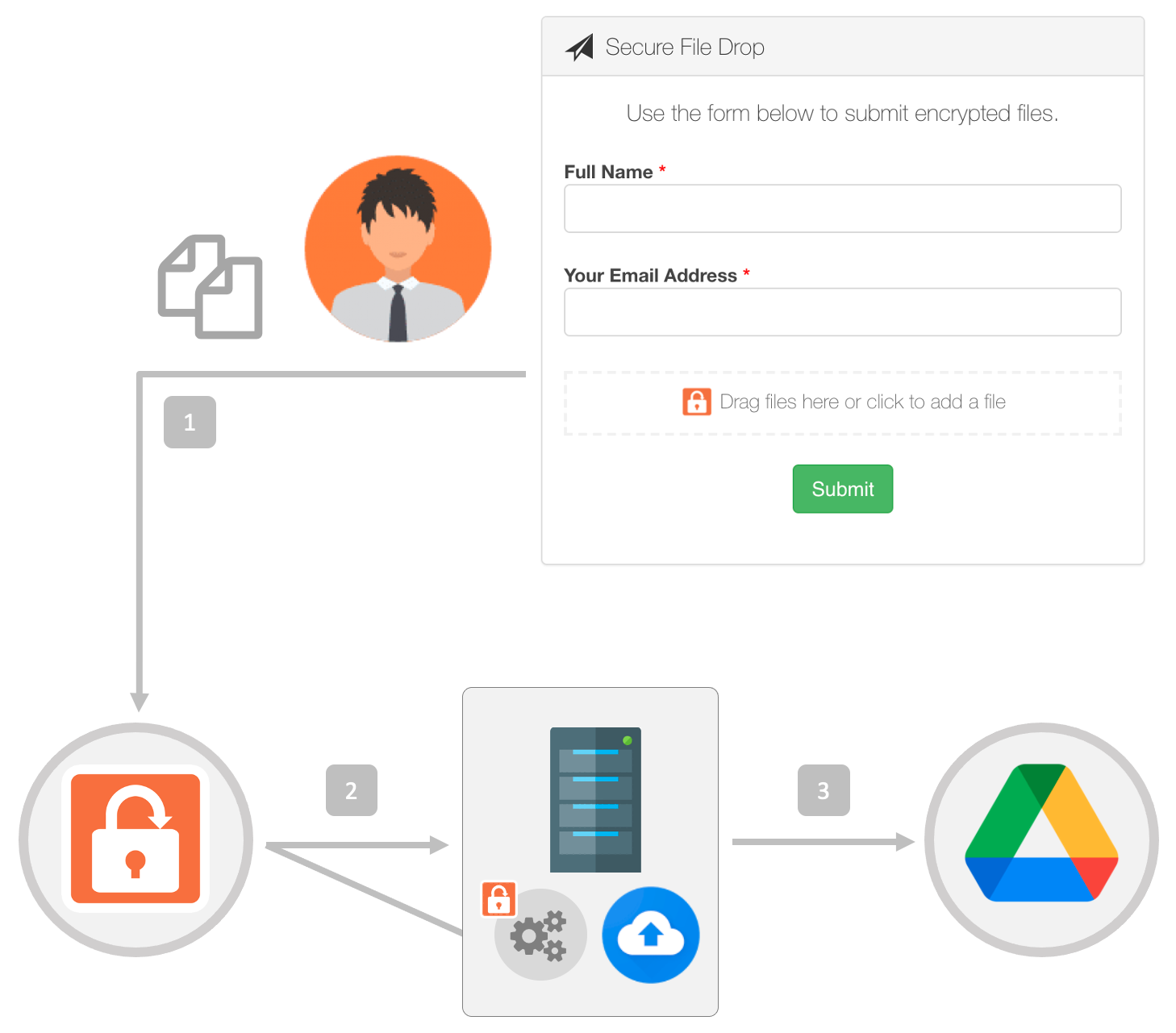
Step 1: External customer submits documents using the SendSafely Dropzone. For example, if this is part of your new customer onboarding or KYC workflow the submitted documents could include pictures of signed contracts, or identity verification documentation such as scanned copies of Driver’s Licenses or Passport images.
Step 2: The SendSafely Secure Package Export Utility is used to poll the Dropzone for new submissions. The utility downloads and decrypts newly received files and stores them in a local folder.
Ideally this step should be run from an internal server so that you can schedule this task to automatically run at a regular timeframe (i.e. every 10 minutes).
Step 3 : The Google Drive Backup and Sync utility is then used to sync the local folder location from Step 2 where the exported files are stored. When a submitted file is saved to the local folder, it will automatically be copied up to the remote Google Drive folder.
A detailed walkthrough of how to configure the above workflow using Microsoft Windows is published in our Help Center.
It should be noted that the above example uses Google Drive as the destination for file storage, however this workflow can also be enabled for any other cloud storage provider that provides a similar sync utility:
- OneDrive App for Windows (works with OneDrive and Sharepoint)
- Box Sync for Mac and Windows
- Dropbox Sync for Mac and Windows
SendSafely: Encrypted File Transfer for Modern Business
If your organization needs a secure way to transfer files with customers or business partners, our platform might be right for you. Contact us today.
Request a Demo


