Skip to content
New AI Custom Form BuilderDescribe the intake form. It ships branded and end-to-end encrypted.AI Custom Form Builder is here See it build
Product

Enforcing Two Step Authentication with SendSafely

SendSafely Enterprise Administrators have the option to enforce two step authentication across all users in their portal from the Enterprise Console.

Brian Holyfield · 2 min read
Enforcing Two Step Authentication with SendSafely

SendSafely Enterprise Administrators have the option to enforce two step authentication across all users in their portal from the Enterprise Console. Once enabled, all users will be required to turn on two step authentication as part of the login process.

SendSafely’s two step login feature supports both SMS verification and mobile authenticator apps like Google Authenticator , Duo Mobile , Authy **and** Windows Phone Authenticator. Two step authentication is only enforced when users authenticate using a SendSafely username and password. Two step authentication is not enforced when logging in via Single Sign On or using your Google account.

To require users configure two step authentication, Administrators should take the following steps:

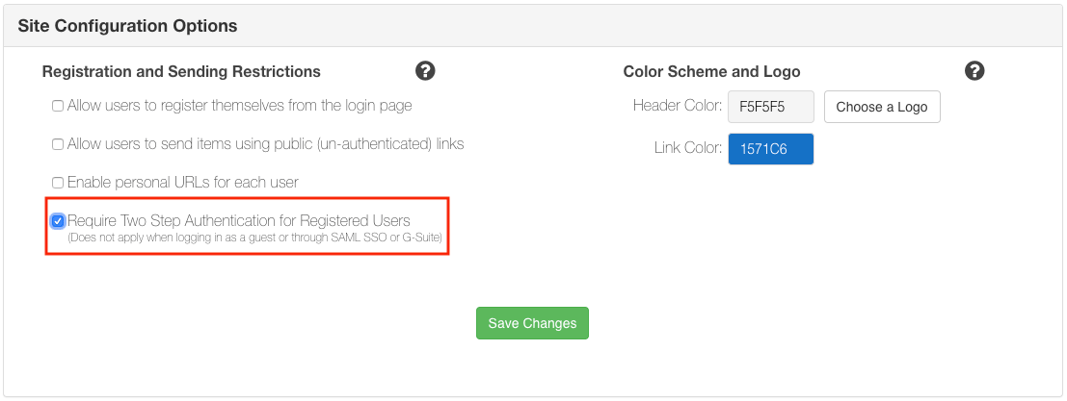
  1. Go to the Enterprise Console and scroll down to Site Configuration Options
  2. Check the box next to Require Two Step Authentication for Registered Users
  3. Press the Save Changes button

Enforce 2FA at Enterprise Level-1

Administrators can view two step configuration status from the Active Users list as shown below:
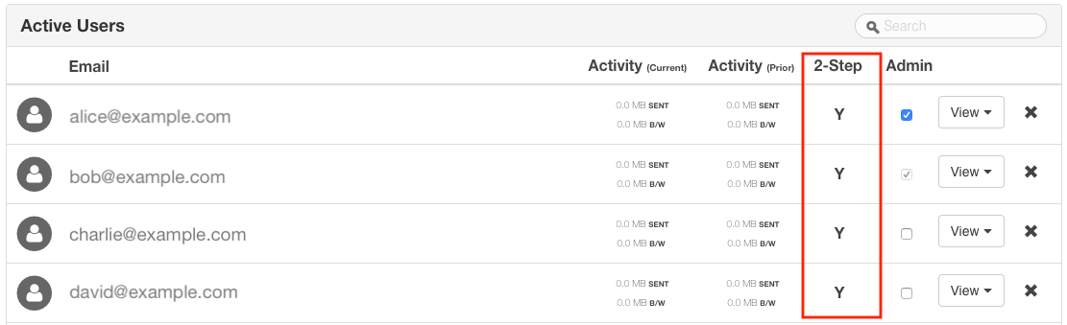
User List-2

If you have existing users that have not already enabled two step login, you can enable this feature on their behalf from the Enterprise Console. If you click the user’s row in the Active Users listing, you will see a switch that allows you to turn on two step login (see below).

Turn on 2FA-2

Once enabled at the enterprise level, all new users registering with a username and password will be required to set up two step authentication from the Account Registration screen.
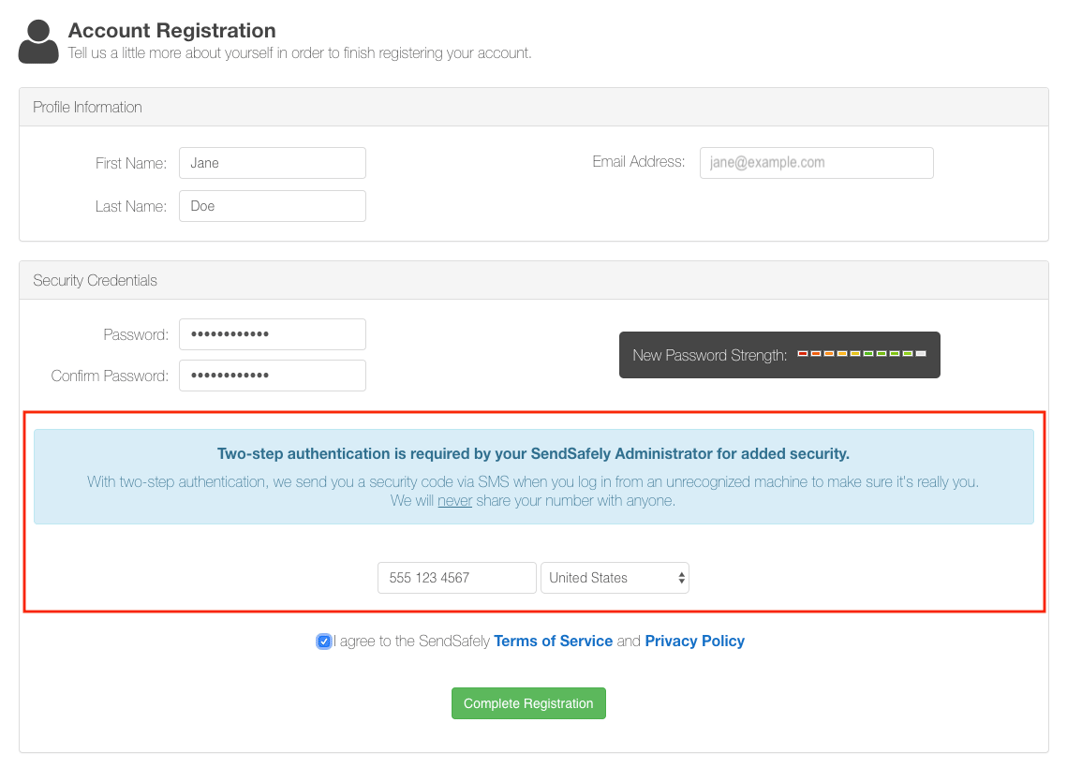
2FA at User Registration-1

SendSafely recommends that end users leverage an authenticator app as their primary method of two step authentication. However, the use of SMS should be allowed for cases where no other option is available. Further guidance on the authenticator app setup process is available here.
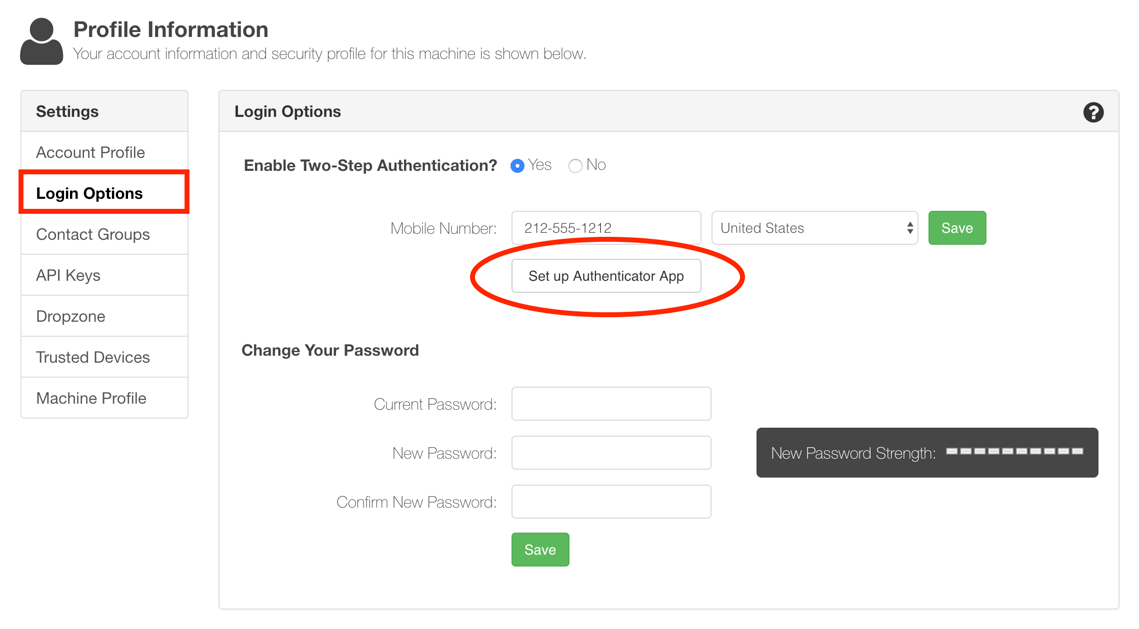
Authenticator Setup

If you are an enterprise administrator and would like assistance with enabling this option, please contact our support team.


SendSafely: Integrated File Transfer for the Apps you Love

If you are looking for a secure way to transfer files with customers or business partners, our platform might be right for you. Contact us today to request a demo and free trial subscription.

Request a Demo

Frequently asked questions

How do I require two step authentication for all SendSafely users in my organization?

Enterprise Administrators turn it on from the Enterprise Console. Scroll to Site Configuration Options, check Require Two Step Authentication for Registered Users, and press Save Changes. After that, users who log in with a SendSafely username and password must set up two step authentication.

Does SendSafely enforce two step authentication for users who log in with SSO?

No. SendSafely’s two step authentication applies only to users who log in with a SendSafely username and password. Users who authenticate through Single Sign-On or their Google account rely on those providers’ authentication controls and are excluded from SendSafely’s native enforcement, as described on the Security Overview.

What two step authentication methods does SendSafely support?

SendSafely supports one-time SMS codes and mobile authenticator apps such as Google Authenticator, Duo Mobile, and Authy. SendSafely recommends an authenticator app as the primary method and allowing SMS only where no other option is available.

Can a SendSafely admin see which users have two step login turned on?

Yes. Administrators can view each user’s two step configuration status in the Active Users list in the Enterprise Console. Clicking a user’s row also shows a switch that lets the admin turn on two step login on that user’s behalf.

What happens to new users after an admin enforces two step authentication?

Once enforcement is enabled at the enterprise level, every new user who registers with a username and password must set up two step authentication from the Account Registration screen. Setup steps for authenticator apps are covered in Authenticator App Support for Two Step Authentication.

Written by Brian Holyfield