
SendSafely now has enhanced support for our two-step login feature that allows you to use a mobile authenticator app for generating authentication codes. Until now, the option to protect your account using two step authentication has relied exclusively on SMS. With this latest update, you can now use a variety of authenticator apps to generate authentication codes directly on your mobile device using Google Authenticator , Duo Mobile , Authy **or** Windows Phone Authenticator.
Two step authentication is only available for accounts that use a SendSafely username and password, and cannot be used if you log in via Single Sign On or using your Google account. You must also have two-step login using SMS set up a pre-requisite, as it will be used as a back up option if you do not have access to your designated authenticator app.
Existing users can set up an authenticator app by following the steps below:
- Navigate to the Account Menu - > Edit Profile page and click on the Login Options tab
- If not already turned on, enable two step authentication, enter your mobile number and country and click save. You will be sent a verification code via SMS to confirm the phone number entered is correct.
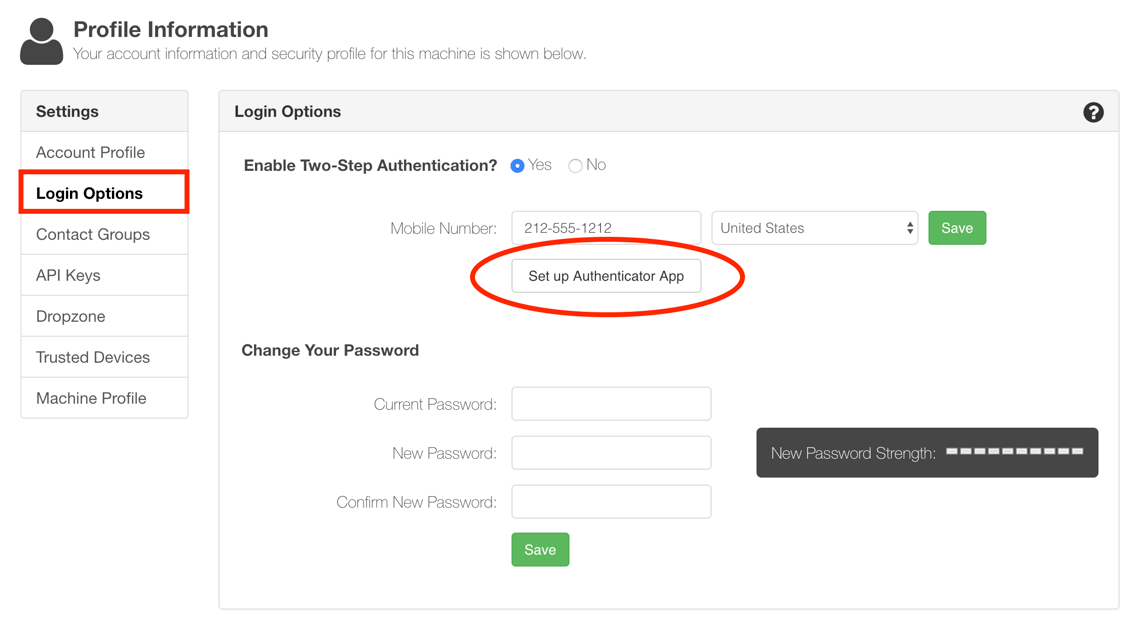
- Once your mobile number is confirmed, click the Set up Authenticator App button. You will need to download and install the Google Authenticator, Duo Mobile, Authy, or Windows Phone Authenticator app for your phone or tablet.
- Open the app and scan the displayed barcode. You will be prompted to enter a verification code from the app along with your SendSafely password to complete the set up.
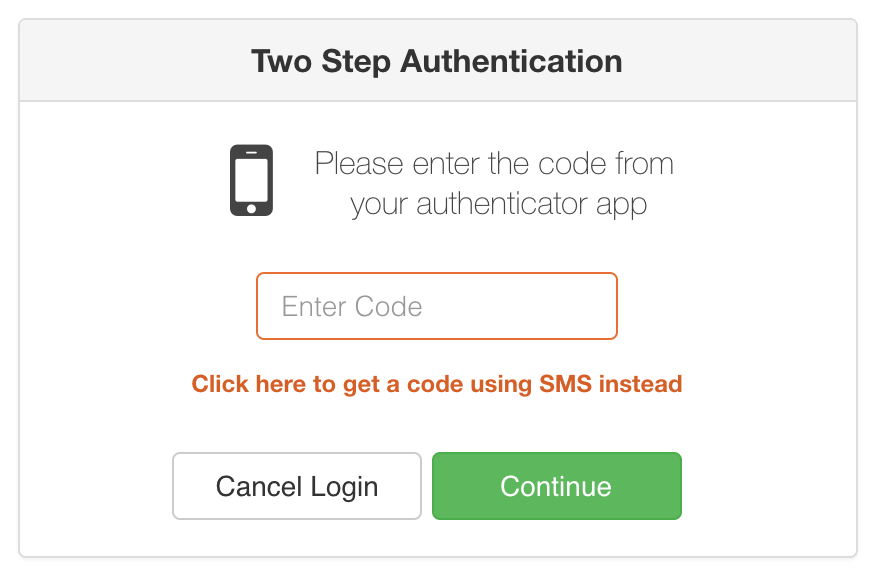
Once enabled, you will need to enter an authenticator code every time you log in. If you do not have access to your authenticator app, you can choose to have your two factor authentication code sent to you via SMS instead.
SendSafely: Integrated File Transfer for the Apps you Love
If you are looking for a secure way to transfer files with customers or business partners, our platform might be right for you. Contact us today to request a demo and free trial subscription.
Request a Demo


